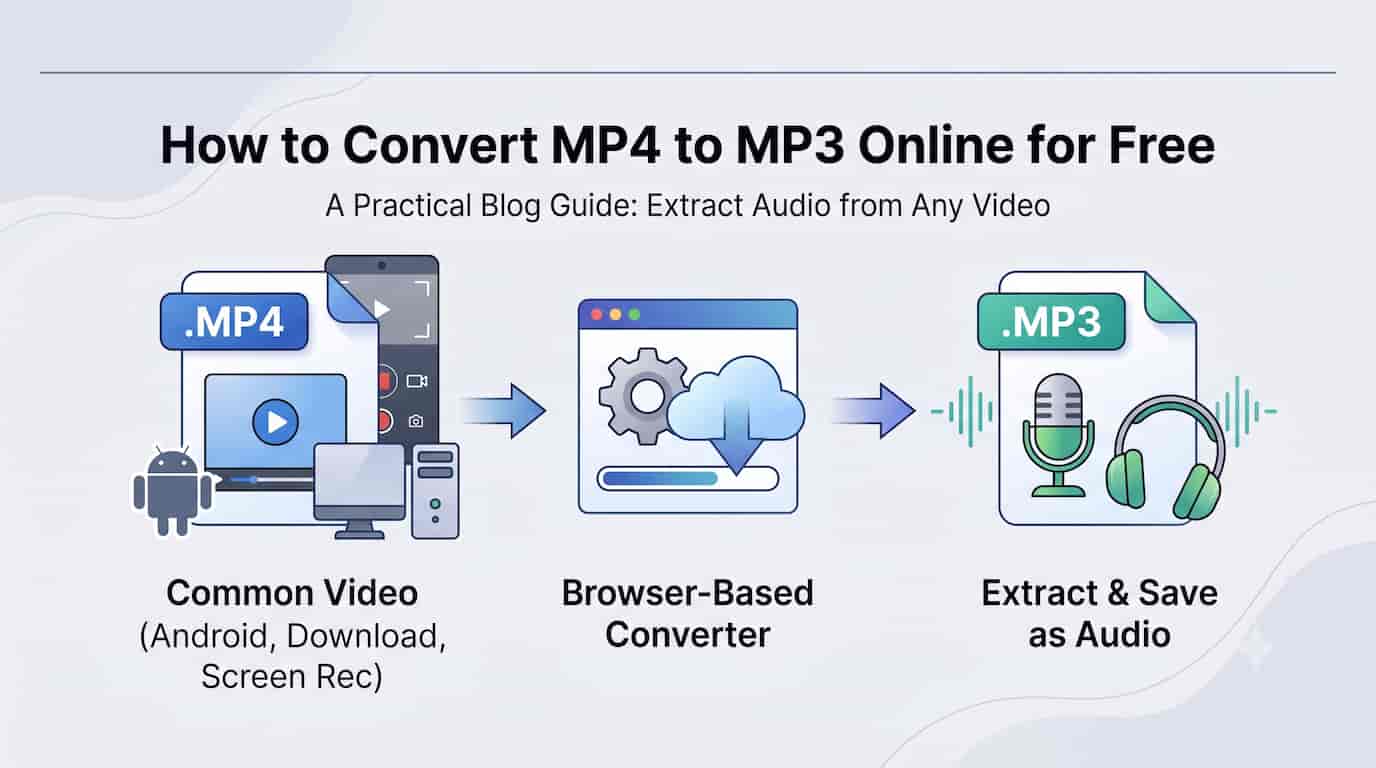
MP4 is the most common video format on the internet. Downloaded videos, screen recordings, phone recordings, YouTube exports, and files shared between Android and Windows devices are almost always MP4. But a lot of the time, the video itself is not what you need — you just want the sound.
Maybe it's a recorded meeting where only the audio matters. Maybe it's a downloaded interview, a lecture, a webinar, a voice note recorded as video, or a music clip. Keeping the full MP4 file is unnecessary when the only part you actually want is the audio track.
That is where an mp4 to mp3 converter becomes useful. By converting MP4 to MP3, you turn a large video file into a small, portable audio file that plays on almost any device, app, or platform.
The easiest way to do this is with a browser-based Video to MP3 Converter. Instead of installing desktop software or uploading a video to a cloud server, you can convert a local MP4 file directly in your browser and download the MP3 when it's ready.
MP4 to MP3 Conversion: When It Makes Sense
Converting an MP4 video into MP3 makes sense whenever the visual part of the video isn't important. MP4 is a video container that can hold a video stream, an audio stream, subtitles, and metadata all in one file. Converting to MP3 pulls out only the audio stream and saves it as a standalone file.
Common situations where this comes up:
- Downloaded videos — a video pulled from a website or shared link where you only want the audio
- Screen recordings — a recorded call, tutorial, or presentation where the audio narration matters more than the screen
- Android phone recordings — most Android cameras save video as MP4 by default
- Webinars and online courses — long video files that are easier to listen back to as audio
- Music or DJ sets exported as video — MP4 clips from a livestream or recording that you'd rather have as MP3
MP4 is also the format most video editing tools, phones, and platforms default to when exporting. That makes it the single most common starting point for a video-to-audio conversion.
What Is an MP4 File?
MP4 (MPEG-4 Part 14) is a container format, not an audio or video codec by itself. Inside an MP4 file, there is usually a video stream (often encoded with H.264 or H.265) and an audio stream (often AAC). The container just bundles them together into one file.
That distinction matters for conversion. When you convert MP4 to MP3, the tool is not "converting the whole video" — it's extracting the existing audio stream and re-encoding it into MP3 format. The video data is discarded, and what's left is just the sound.
If your goal is to listen to the speech, music, narration, or background audio, you don't need to keep the video track at all.
Why Convert MP4 to MP3?
1. Turn Large Video Files into Small Audio Files
Video is heavy. A short MP4 clip can easily be tens of megabytes, and a long recording can reach into the gigabytes. An MP3 extracted from the same file is usually a small fraction of that size, which makes it far easier to store, send, or upload elsewhere.
2. Listen Without Watching
If you want to listen to a lecture, podcast-style video, or recorded call while driving, walking, or working, a video file is inconvenient. MP3 behaves like a normal audio track, so it works properly with music apps, car stereos, and background playback.
3. Use the Audio in Transcription Tools
Many transcription and note-taking tools handle MP3 more reliably than MP4. If you're transcribing an interview, meeting, or lecture, converting to MP3 first often makes the workflow smoother.
4. Share Audio More Easily
Sending someone a full video just for the audio is wasteful, and not every device previews video the same way. An MP3 file opens instantly almost everywhere, without the file size or compatibility issues of video.
5. Archive Only What You Need
If you're keeping a personal archive of interviews, voice notes, or recordings, there's often no reason to keep the video portion. Converting to MP3 keeps the useful part and drops the rest.
How to Convert MP4 to MP3 Online
The simplest way to convert MP4 to MP3 is with a browser-based tool. With UploadLess, the process takes a few seconds:
- Open the Video to MP3 tool: Go to the free Video to MP3 Converter.
- Import your MP4 file: Drag and drop your
.mp4video into the upload area, or select it from your device. - Start the conversion: Click convert and let your browser process the file.
- Download the MP3: Save the extracted audio to your computer or phone.
There's no software to install and no account to create. Because the conversion happens in your browser, you don't need a video editor, a codec setting, or a command-line tool. You just need the audio, and that's what you get.
Convert MP4 to MP3 Without Uploading Your File
Many online converters require you to upload your video to a remote server before you get anything back. That's a real concern if your MP4 file isn't meant for public eyes.
MP4 files people convert are often things like:
- a recorded business meeting
- a client call or interview
- a personal video downloaded for offline use
- a screen recording containing sensitive information
- a private voice note recorded as video
Uploading files like that to an unfamiliar server means trusting that server's storage policy, security, and retention practices — even if the site promises to delete files afterward.
A browser-based video to MP3 converter avoids that entirely. The MP4 file is selected from your device, processed locally inside your browser, and the resulting MP3 is saved back to your device. Nothing is transmitted anywhere.
MP4 to MP3 vs MOV to MP3
MP4 and MOV are both video containers and can both hold a video stream and an audio stream, but they tend to come from different places:
- MP4 — the default on Android phones, most cameras, screen recording tools, and general video downloads. This is the most widely used video format overall.
- MOV — the default on iPhone, iPad, and Mac, especially for videos recorded with the native camera app or exported from QuickTime.
If your file came from an Android device, a downloaded video, or a screen recording tool, you're most likely converting MP4 to MP3. If it came from an iPhone or Mac, you may be looking for MOV to MP3 instead.
Either way, a flexible video to MP3 tool handles both formats — and WebM, MKV, and AVI as well — so you don't need a separate converter for each file type.
Audio Quality When Converting MP4 to MP3
A common question is whether converting MP4 to MP3 makes the audio sound worse. It depends on the source.
MP4 files usually contain audio encoded with AAC, which is already a compressed format. Converting to MP3 re-encodes that audio into a different compressed format. Some technical quality loss is possible, but at a high bitrate, the difference is very hard to notice for everyday listening.
MP3 is more than good enough for:
- lectures and webinars
- interviews and meetings
- voice notes
- casual music clips
- podcast drafts
- personal recordings
If you're working on professional music production or mastering, keep the original MP4 or export from a dedicated audio editor instead. MP3 is built for convenience and compatibility, not studio-grade preservation.
Common Problems When Converting MP4 to MP3
The MP4 File Has No Audio Track
Some MP4 files, especially silent screen recordings or muted exports, don't contain an audio stream at all. If there's nothing to extract, the conversion will produce an empty or failed result.
The File Is Very Large
Because conversion happens using your device's own resources, a long or high-resolution MP4 will take longer to process than a short clip. Processing time depends on your CPU, memory, and browser rather than a server queue.
The Audio Sounds Quiet or Distorted
Conversion doesn't fix problems that were already in the original recording. If the source audio was recorded too quietly or with a lot of background noise, the MP3 will carry the same issue.
The Browser Runs Out of Memory
Very large MP4 files can be demanding for browser-based processing. If things slow down, close other tabs, use an up-to-date desktop browser, and try again.
Final Thoughts
MP4 is the most common video format around, but it's not always the right format when all you need is the sound. If your file is a downloaded video, a screen recording, a meeting, or a webinar, converting MP4 to MP3 makes the content easier to listen to, share, store, and transcribe.
A browser-based MP4 to MP3 converter gives you the simplest path: choose your local MP4 file, extract the audio, and download an MP3 that works almost anywhere.
If you have an MP4 video and only need the sound, try converting it to MP3 now with UploadLess.
Frequently Asked Questions
How do I convert MP4 to MP3 online?
Open the Video to MP3 Converter, select your MP4 file, start the conversion, and download the MP3 audio file when it's ready. The process is designed for quick audio extraction from local video files.
Is MP4 to MP3 conversion private?
With a browser-based converter like UploadLess, the conversion happens locally inside your browser. Nothing is uploaded, which matters for meetings, interviews, and personal recordings you don't want on someone else's server.
Will converting MP4 to MP3 reduce audio quality?
Some technical quality loss is possible since MP3 is a compressed format, but for voice recordings, lectures, meetings, and everyday listening, the difference is rarely noticeable.
Can I convert MP4 to MP3 on my phone?
Yes. Since the tool runs in your browser, it works on mobile browsers as well as desktop, without needing to install an app.
Why is my MP4 file not converting?
The file may have no audio track, use an unusual codec, be too large for your browser's available memory, or be damaged. Try playing the original MP4 file first to confirm the audio track works.