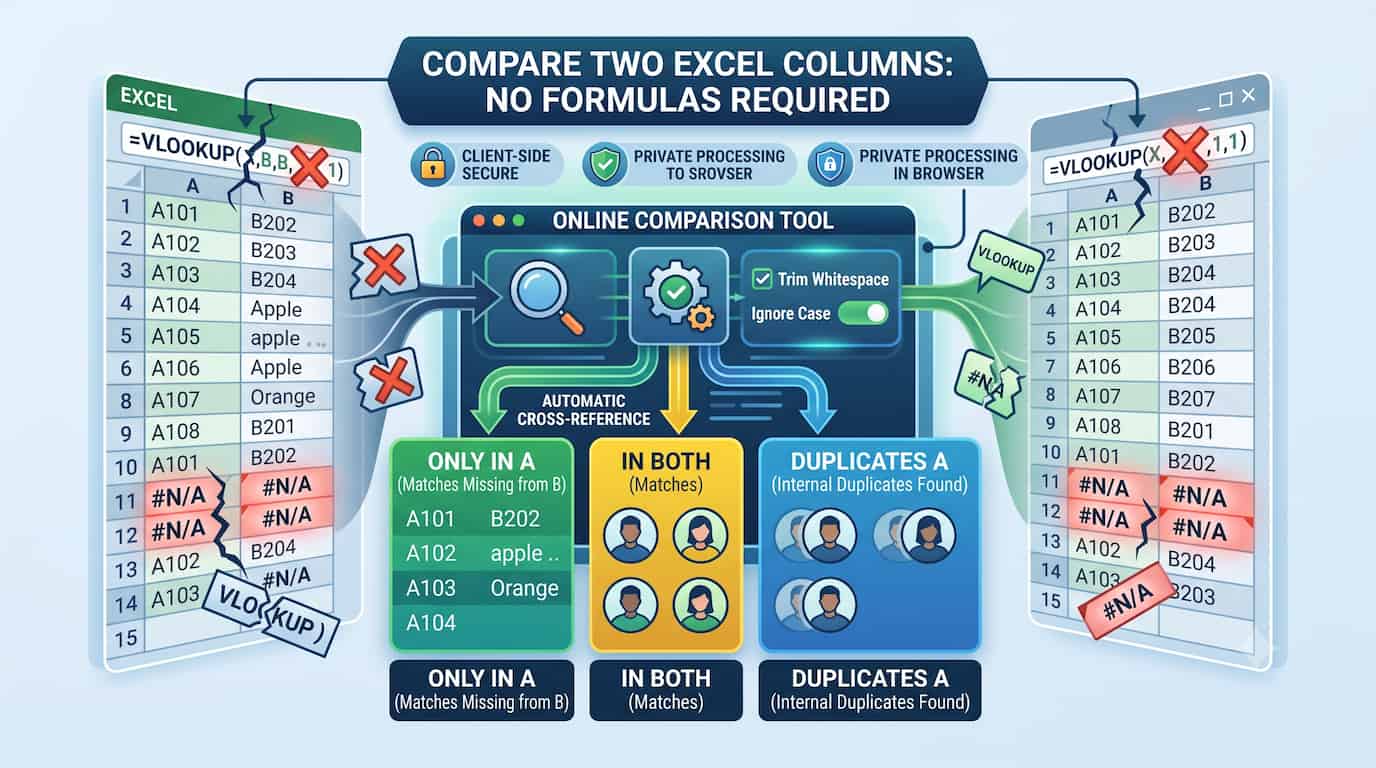
Anyone who works with data regularly has spent at least one afternoon staring at an #N/A error from a VLOOKUP that should have worked. The data looks identical. The formula looks right. And yet Excel insists there is no match.
Comparing two columns in Excel is one of the most common data tasks across accounting, HR, operations, marketing, and development. It should take seconds. Instead, it routinely takes hours—because Excel was not built specifically for this task, and the workarounds it requires are fragile, frustrating, and unreliable at scale.
There is a better approach. A dedicated online list comparison tool lets you paste or upload your Excel data and returns accurate, categorized results instantly—no formulas, no conditional formatting, no crashes. This guide explains why Excel formulas fail at list comparison and shows you exactly how to do it the fast way.
Why Excel Formulas Fail at Column Comparison
Excel is a powerful tool for a lot of things. Comparing two distinct lists to find differences and matches is not one of its strengths. Here is why the standard approaches consistently break down.
The VLOOKUP and XLOOKUP Trap
The default advice for comparing two Excel columns is to use VLOOKUP, XLOOKUP, or an INDEX/MATCH combination. These functions are technically capable of finding whether a value in Column A exists in Column B—but they require exact conditions to work reliably.
A single trailing space in one cell will cause a mismatch. An inconsistent number format (one column treating a value as text, the other as a number) will cause a mismatch. Forgetting to use absolute references ($B$2:$B$1000 instead of B2:B1000) will cause the lookup range to shift as you copy the formula down the column, producing completely wrong results. VLOOKUP also searches only left to right, which means if your reference column is to the right of your lookup column, you have to rearrange your entire spreadsheet before you can even write the formula.
For users who do not work with these functions daily, the syntax alone is a barrier. For users who do know the syntax, the debugging process for a broken formula is a separate time sink.
The Invisible Character Problem
This is the root cause of the majority of false mismatches in Excel comparisons. When data is exported from a CRM, database, or another application and pasted into Excel, it frequently carries invisible characters: leading spaces before a value, trailing spaces after it, hidden line breaks embedded in the text. These characters are completely invisible in the cell—you cannot see them, and they do not affect how the data looks. But Excel's comparison functions treat them as part of the value. "apple" and "apple " (with a trailing space) are different strings to a VLOOKUP, even though they look identical on screen.
The standard fix is to wrap every cell in a =TRIM() function to remove whitespace, then apply your comparison formula on top of that. That is two layers of formulas for a task that should require zero.
Conditional Formatting Does Not Extract Data
The other popular approach—highlighting duplicate or unique values using Conditional Formatting—has a different set of limitations. It can visually flag cells, but it cannot produce a list of those values that you can copy, paste, or use anywhere else. If you need to email a list of "people who are in Column A but not Column B" to your manager, Conditional Formatting will not help you. You still have to manually scan through highlighted cells and copy the relevant ones by hand.
Conditional Formatting also becomes visually overwhelming on lists with thousands of rows. Identifying patterns in a column of 5,000 rows where 600 are highlighted red and 400 are highlighted green is cognitively demanding and error-prone.
Performance Issues on Large Datasets
Array formulas and Conditional Formatting rules applied to columns with 50,000 or more rows frequently cause Excel to slow to a crawl, freeze, or crash outright. The application has to recalculate the formula for every cell every time anything in the workbook changes. For large datasets, what should be a two-second check becomes a waiting game—if the application stays responsive at all.
The Better Way: Compare Excel Columns with an Online Tool
A dedicated list comparison tool was built for exactly this task. It takes the complexity of set theory operations—finding differences, intersections, and unions between two datasets—and wraps it in an interface that requires no technical knowledge to operate.
Here is the complete workflow.
Step 1: Isolate Your Columns
Open your Excel workbook. Identify the two columns you want to compare. Click the header of the first column to select all of its data, then copy it to your clipboard (Ctrl+C or Cmd+C).
One important note: compare one column at a time, not full rows. If you try to compare John Smith, 2024-01-15, $499.00 against Smith John, 01/15/2024, $499 as a single string, nothing will match even though the underlying data is the same. Isolate the specific field you want to verify—the ID, the email, the SKU, the name—and compare that column independently.
Step 2: Paste Your Data into the Comparison Tool
Open the comparison tool. You will see two input areas: List A and List B. Paste your first column into the "List A" box. Go back to Excel, copy your second column, and paste it into the "List B" box.
Alternatively, upload your data directly as a file — .csv, .txt, or the Excel file itself (.xlsx). The tool reads the file locally in your browser and parses each row automatically.
Step 3: Configure the Comparison Options
For Excel data, two options are consistently worth enabling before you run the comparison:
- Trim Whitespace: This eliminates the trailing space problem that causes
VLOOKUPto return#N/Aon data that appears identical. Enabling this one option resolves the single most common source of false mismatches in Excel column comparisons. - Ignore Case: If your data might have inconsistent capitalization across the two columns—"New York" in one, "new york" in another—enabling this option prevents false mismatches caused purely by capitalization differences.
Step 4: Run the Comparison and Use the Output
Click compare. The tool processes every line in both inputs simultaneously and returns results in categorized tabs. Unlike Excel, which returns a formula result (match or #N/A) that still requires manual work to turn into a usable list, the tool produces clean, copyable plain text in each output tab.
Understanding Each Output Type
Each output tab in the comparison tool maps directly to a specific question you might have about your data.
"Only in A" — What Is Missing from Column B?
This is the most commonly needed output for column comparison tasks. It answers: "What is in my first list that does not appear in my second list?"
If Column A is your master customer list and Column B is the list of customers who renewed their subscription this year, "Only in A" gives you the exact list of customers who have not renewed. Copy this output, paste it into an email or a CRM filter, and you have your outreach list.
"Only in B" — What Is New or Unexpected in Column B?
This answers the reverse: "What appears in my second list that is not in my first list?"
If Column A is your approved vendor list and Column B is the vendor IDs on this month's invoices, any ID appearing "Only in B" is an invoice from an unapproved vendor. In an inventory context, if Column A is last month's product catalog and Column B is this month's, "Only in B" shows you every newly added product.
"In Both" — What Matches Across Both Columns?
The intersection: values that exist in both Column A and Column B.
If Column A is a list of job applicants and Column B is a list of your existing employees (checking for internal referrals), "In Both" instantly identifies which applicants already have an internal connection at your company.
"All Unique" — A Merged, Deduplicated Master List
Combines all distinct values from both columns into one clean list with no duplicates. Use this when you want to merge two separate data sources into a single master list for import.
"Duplicates A" and "Duplicates B" — Internal Duplicates Within Each Column
One of the most overlooked features. This shows you values that appear more than once within a single column—duplicates internal to List A or List B before you even cross-reference them.
If your "master" column has the same ID listed four times because of a data entry error or a faulty import, your cross-reference results will be misleading. Checking for internal duplicates first—and cleaning them out—ensures your baseline data is accurate before comparison.
Common Use Cases for Excel Column Comparison
Accounting and Bank Reconciliation
Accountants compare the company's internal transaction log (Column A) against the exported bank statement (Column B) to find discrepancies. "Only in A" identifies internal transactions not yet reflected by the bank (timing differences, outstanding checks). "Only in B" identifies bank transactions with no internal record—potential unauthorized charges or data entry omissions. This reconciliation process runs monthly at minimum.
HR: Payroll and Compliance Verification
HR teams regularly compare master employee rosters against payroll processing lists, benefits enrollment files, and mandatory training completion exports. Missing a name in the payroll comparison results in a missed paycheck. Missing a name in a compliance completion log triggers regulatory penalties. A dedicated comparison tool makes these monthly checks reliable and fast.
Inventory and E-commerce: SKU Reconciliation
Warehouse managers compare physical stock count exports (Column A) against the ERP system's inventory records (Column B). "Only in A" flags items physically present but not recorded in the system. "Only in B" flags items recorded in the system but not physically found—potential loss, misplacement, or data entry error.
Data Migration Quality Assurance
When migrating records from a legacy system to a new platform, developers compare the list of exported record IDs from the old system against the list of imported IDs in the new system. Any ID appearing "Only in A" represents a record that failed to migrate. This comparison must run before the legacy system is decommissioned. The full reconciliation workflow — including internal duplicate audits before cross-referencing — is covered in finding missing items and unique values between two lists.
SEO and Content: URL and Keyword Audits
SEOs compare crawled URL lists against sitemap URLs to find orphaned pages. Content teams compare keyword lists from different research tools to find gaps in coverage. Link builders compare outreach target lists against already-contacted lists to avoid duplicate outreach. These are all direct column-to-column comparison tasks. Email marketers run a parallel process on subscriber data — suppression checks, segment overlap, lead source merges — detailed in how to compare customer email lists online.
Privacy and Security: Why No Data Leaves Your Browser
Comparing Excel data online raises a legitimate concern: corporate spreadsheets often contain sensitive information—employee names, financial figures, customer IDs, proprietary data. Most online tools process data server-side, meaning your spreadsheet content is uploaded to and processed on their infrastructure.
The list comparison tool operates entirely differently. Its architecture is 100% client-side, meaning the comparison engine runs as code inside your own web browser, on your own device. When you paste data or upload a CSV file, nothing is transmitted to any server. The computation happens locally using your machine's processing power. There is no backend receiving your data. There is no database logging your inputs. There are no cookies tracking your content.
This makes it functionally equivalent to running a local desktop application, with the convenience of a web interface. It is safe for enterprise use, safe for personal data, and compliant with corporate IT policies that prohibit uploading sensitive business data to third-party cloud services.
Frequently Asked Questions
How do I compare two Excel columns without using a formula?
Copy the data from your first column and paste it into the List A input of the online comparison tool. Copy your second column into List B. Click compare. The tool categorizes every value as unique to A, unique to B, or present in both—instantly, with no formula required.
Why does my VLOOKUP return #N/A when the data looks identical?
The most common cause is trailing whitespace—an invisible space after the value in one cell. The cell looks identical on screen, but Excel's formula engine treats it as a different string. Enable the "Trim Whitespace" option in the comparison tool to eliminate this problem entirely.
Can I compare data from a CSV file without opening it in Excel?
Yes. Upload the .csv file (or the .xlsx file directly) into the tool. It reads the file locally in your browser and parses each line or row for comparison. No need to open it in Excel or any other application first.
How do I find values that are in Column A but not Column B?
Open the "Only in A" output tab after running the comparison. This isolates every value present in your first list that does not appear anywhere in your second list.
Is my Excel data safe to paste into an online tool?
Only if the tool uses client-side processing. This tool processes all data locally within your browser and never transmits it to any external server. It is safe for sensitive company data, financial records, and personal information.
Can the tool identify duplicates within a single column?
Yes. After running the comparison, check the "Duplicates A" and "Duplicates B" output tabs. These show values that appear more than once within each individual list, independent of the cross-list comparison.
What is the maximum number of rows I can compare?
Because the tool runs on your local browser rather than a shared remote server, capacity scales with your device. Tens of thousands of rows compare in seconds. The tool handles large datasets without the freezing or crashing that Excel commonly experiences on similar-sized column comparisons.