Direct AVI to MP4 Conversion in the Browser using FFmpeg: Stress-Testing an M3 Mac and the Truth About WebAssembly
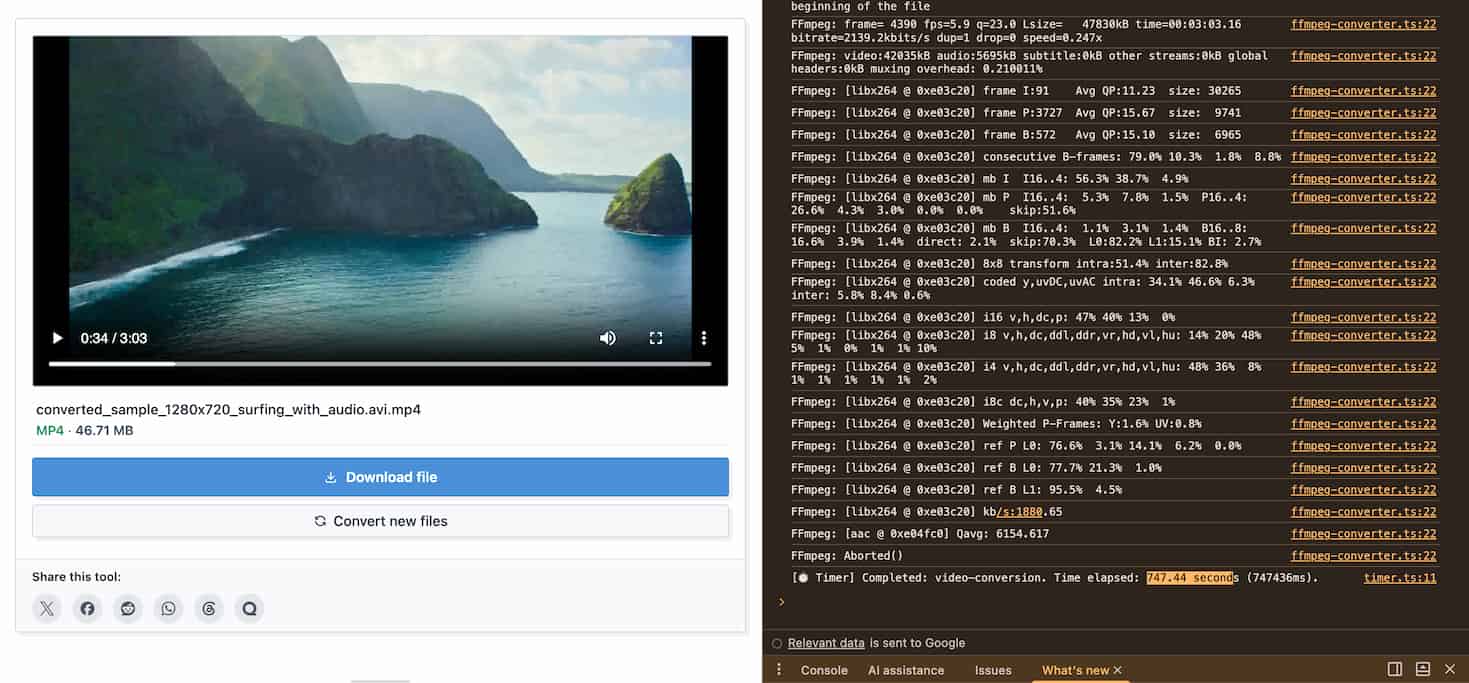
Recently, I spent some time coding a small utility: a video conversion tool that runs entirely within the browser, powered by the FFmpeg core. To put its capabilities to the test, I grabbed my MacBook Air M3 (16GB RAM) to act as a guinea pig, running a conversion of an old AVI file to MP4 directly on Google Chrome.
The results I got were both amusing (lol) and technically fascinating: The stopwatch halted at exactly 747.44 seconds (just over 12.5 minutes), and the famously cool M3 chip made the aluminum chassis noticeably warm to the touch.
So, why does a computer equipped with one of the most powerful chips on the market today have to "break a sweat" for over 12 minutes just to change a video's format? In this article, we will dissect the technical math behind this process, and answer the ultimate question: If it's that slow, why do we even need browser-based processing tools?
1. The First Bottleneck: Remux vs. Transcode
The biggest reason my test took so long wasn't the machine; it was the original file. The file I chose was an older AVI format using legacy compression standards (codecs) like DivX or Xvid.
In the world of video processing, you must distinguish between two core concepts:
- Remux (Copy - Extremely Fast): If your source video already uses a modern codec (like H.264), FFmpeg simply extracts the video and audio "core" and stuffs it into a new MP4 "wrapper." This process is essentially like copying data from one folder to another and takes only a few seconds.
- Transcode (Decode & Encode - Extremely Slow): Because my AVI file used an outdated standard incompatible with MP4, FFmpeg was forced to "rebuild it from scratch." It had to Decode every single frame of the old video, and then Encode that massive stack of frames into the modern H.264/H.265 standard. This pixel-by-pixel grinding is incredibly CPU-intensive.
2. The Reality of WebAssembly (WASM) in the Browser
...