Taking a screenshot from a video seems easy until you look at the result. The image has a progress bar across the bottom. The pause button is visible. The subject is slightly blurred because the video was still resuming from pause. Or the browser toolbar is cropped into the frame.
These are the small frustrations of using a normal screen capture to grab a moment from a video.
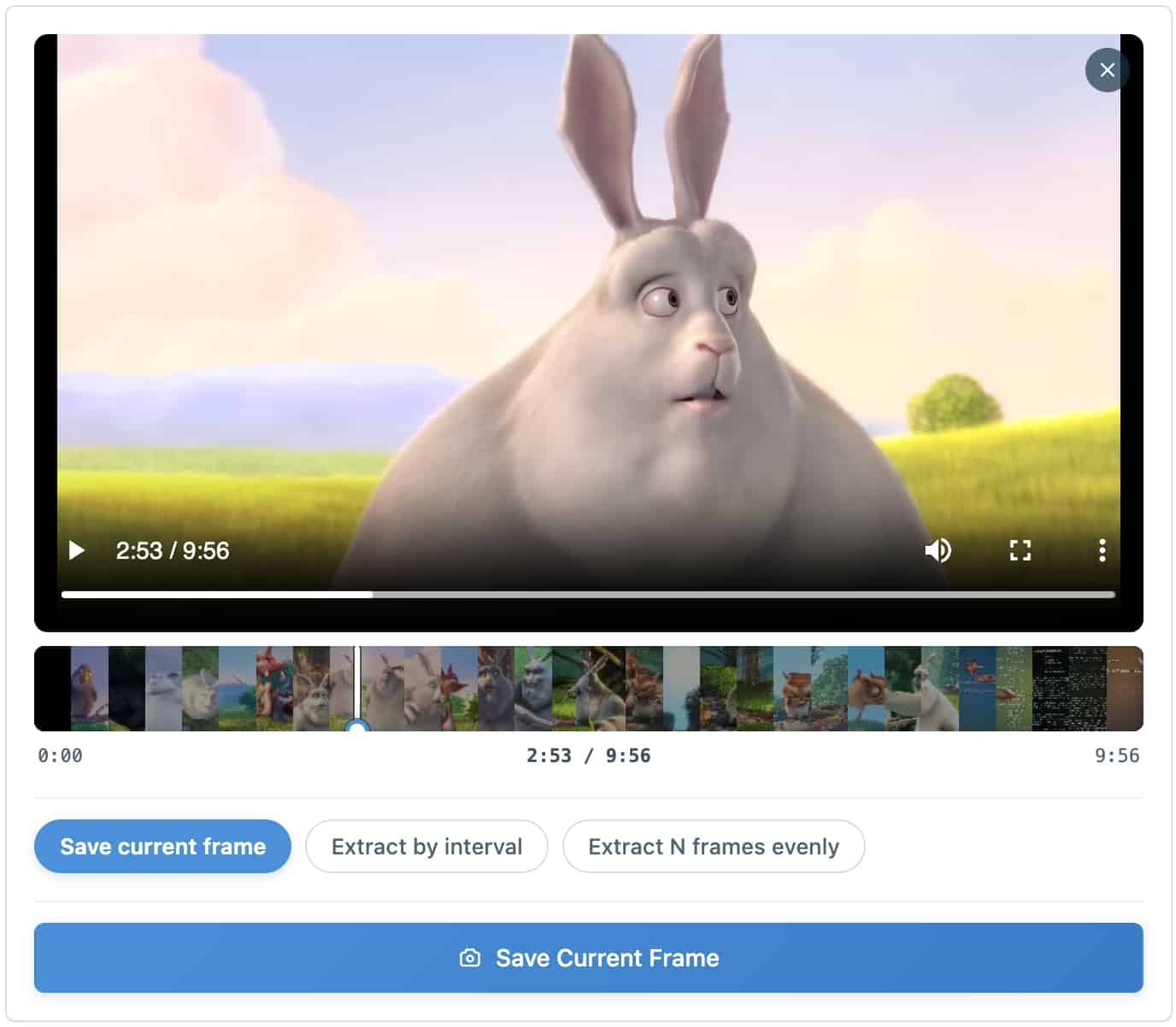
The cleaner method is to extract the actual video frame — the raw still image from the video file, without any player controls, UI overlays, or screen elements. With the free Extract Frames from Video tool, you can upload a video, move to the exact moment you want, and save the current frame as a JPG image.
Video Screenshot vs Extracted Video Frame
These two approaches sound similar but work very differently.
| Method | What It Captures | Common Problems |
|---|---|---|
| Screen screenshot | Everything visible on your screen | Player controls, browser UI, notification bars, cursor |
| Extracted video frame | The raw frame from the video file | None of the above — just the video content |
A screen capture is fast, but it captures your screen — not the video. If you move your mouse before pressing the screenshot shortcut, the player controls reappear. If you have notifications enabled, one might pop up in the corner.
A frame extraction tool saves the actual image data from the video file at the moment you choose. The output is clean, without any interface elements layered on top.
Why Video Screenshots Often Look Bad
Most people try this at least once: pause the video, press the screenshot shortcut, and end up with an image that is not quite right. Here is why it happens.
Player Controls Appear in the Image
Many video players show controls whenever you interact with the video — clicking pause, pressing a key, or just hovering over the video area. If those controls are visible when you take the screenshot, they appear in the image.
For a quick personal note, that may not matter. For a thumbnail, a tutorial image, or any published content, it looks unprofessional.
The Frame May Be Blurry
Video frames at the moment of pause are not always sharp. Motion blur exists in the source video, and pausing at the wrong moment can freeze on a frame where the subject is in mid-movement.
An extracted frame does not automatically remove motion blur from the source, but it makes it much easier to test nearby moments until you find the cleanest one.
The Screenshot Includes Extra UI
A screen capture records your entire screen. If your browser toolbar, desktop taskbar, or other application windows are visible, they end up in the image. Cropping takes extra time, and the proportions of the final image may not match the original video.
Saving the video frame directly avoids all of this.
How to Take a Screenshot from a Video Online
The Extract Frames from Video tool handles this in the browser without uploading your video to a server.
Step 1: Open the Video Screenshot Tool
Open the free Extract Frames from Video tool in your browser. It works on desktop and mobile.
Step 2: Upload Your Video
Choose the video file from your device. MP4 works well in most browsers. MOV files from iPhones are often supported too. If the video was shared through a messaging app, try to find the original file — heavily compressed copies produce lower-quality frames.
Step 3: Use Current Frame Mode
Select the current frame extraction mode. This is the right mode when you want one clean screenshot from the video.
Step 4: Scrub to the Exact Moment
Use the video preview to find the moment you want. Play and pause, or drag the timeline. If the moment you need is brief — a blink, a gesture, a peak of motion — reviewing the video frame by frame makes it much easier to land on the exact still. Look for a frame where:
- the subject is not in mid-movement
- the face or subject expression is what you want
- there is no unwanted text, subtitle, or overlay
- the composition and lighting look right
Step 5: Save the Frame as JPG
Save the current frame. The image downloads as a JPG file with no player controls, no browser UI, and no screen elements — just the video frame.
What Makes a Good Video Screenshot?
Getting the right frame requires more than just pausing at the right second. Here is what to look for.
Avoid Motion Blur
In fast-moving video, blur is often part of the source footage. If the subject was moving when the frame was captured, the still image will also show that blur. Try moving one or two seconds earlier or later to find a sharper moment — see our guide on how to view a video frame by frame for a more precise way to compare nearby moments.
Check the Expression and Pose
For people, small differences in timing make a big difference in the final image. A face that is mid-blink or mid-speech looks very different from one that is composed. Take an extra few seconds to test nearby frames.
Watch for Overlays and Text
Some videos include subtitles, watermarks, timestamps, or platform overlays. If you are extracting a frame from a recorded webinar or a subtitled clip, check that the text is not positioned over the main subject.
Look at the Lighting
A frame that looks fine in motion can appear too dark, too bright, or poorly exposed as a still image. If the first frame looks off, check nearby moments before downloading.
Use the Highest Quality Video Available
The extracted frame is only as good as the source video. A 1080p original will produce a much sharper image than a compressed copy that was shared through a messaging app.
Best Uses for Clean Video Screenshots
A clean video screenshot without player controls is more versatile than it might seem.
Video Thumbnails
Instead of designing a thumbnail from scratch, you can extract the best frame from the video and use it as the thumbnail directly. Extracting several candidate frames gives you options to compare.
Tutorial and Documentation Images
If you recorded a walkthrough, screen recording, or how-to video, extracting specific frames gives you clean images for documentation. No need to take a separate screen recording and screenshot — just extract from the video you already have.
Social Media Previews
A strong still frame can be used as a preview image for social media posts, story covers, link previews, or article headers.
Bug Reports and QA Documentation
If you captured a visual bug, UI error, or unexpected behavior in a video, extracting the frame as a JPG gives you a reusable image for the report or ticket.
Saving Personal Moments
A family video, travel clip, or event recording often contains a moment that would make a great photo. Frame extraction lets you pull that moment as a still image.
Getting a Thumbnail from a Video
If you need to extract a thumbnail from a video — for a video player, a card preview, or a content management system — current frame mode gives you a clean image at the exact moment you choose.
Can You Take a Screenshot from an MP4 Video?
Yes. MP4 is the most common format for this use case.
The Extract Frames from Video tool works as an MP4 screenshot extractor: upload the file, choose the moment, and save the frame as a JPG image. Other formats like MOV and WEBM may also work depending on browser support.
Video Screenshot Online: Privacy and Security
Some online video tools require uploading the video to a remote server before you can work with it. That means your video is transmitted over the internet and processed on someone else's infrastructure.
The Extract Frames from Video tool runs entirely in your browser using local processing. The video file stays on your device. It is not transmitted to any server.
This matters when the video contains:
- personal or family moments
- internal work recordings
- client project footage
- unreleased product demos
- private tutorials or training materials
You can take a video screenshot online without sharing the video with anyone.
When a Normal Screenshot Is Enough
Frame extraction is not always necessary. A regular screen capture works fine when:
- you only need a quick personal note and do not care about controls
- the image will not be published or shared with anyone
- you are going to crop and edit the image anyway
- the video is playing at full quality in your browser and the player is minimal
But any time you want a clean image without interface elements, the extracted frame is the better choice.
Video Screenshot Tool vs Screen Capture Shortcut
A summary of when to use each:
| Situation | Use |
|---|---|
| Quick personal reference | Screen capture shortcut |
| Thumbnail for published content | Frame extraction tool |
| Tutorial documentation image | Frame extraction tool |
| Bug report or QA image | Frame extraction tool |
| Social media preview image | Frame extraction tool |
| Saving a personal video moment | Frame extraction tool |
Final Thoughts
Taking a screenshot from a video is something most people have done with a keyboard shortcut. But for anything beyond a quick personal note, extracting the actual video frame is a cleaner workflow with better results.
Use the free Extract Frames from Video tool to save the current video frame as a JPG. The image will not include player controls, browser UI, or any other screen elements — just the video content at the exact moment you choose.
Frequently Asked Questions
How do I take a screenshot from a video online?
Open the Extract Frames from Video tool, upload your video, choose current frame mode, move to the moment you want, and save it as a JPG image.
Why does my video screenshot show player controls?
Standard screen captures record everything visible on your screen, including video player controls. Extracting the video frame directly avoids this.
Can I take a screenshot from an MP4 video?
Yes. Upload the MP4 to the frame extractor and save the current frame as a JPG. Most MP4 files work well.
What is the difference between a video screenshot and a video frame?
A video screenshot captures your screen including any overlaid interface. A video frame is the actual still image from the video file at a specific moment.
Why is my video screenshot blurry?
The source frame may contain motion blur from the original video. Try moving to a nearby moment where the subject is less in motion.
Can I get a thumbnail from a video using this tool?
Yes. Use current frame mode to save any moment as a JPG, which you can then use as a thumbnail.
Is my video uploaded to a server?
No. The tool processes the video locally in your browser. Your video does not leave your device.
Do I need to install software?
No. Everything runs in the browser. No installation or account is required.
What format is the video screenshot saved in?
The extracted frame is saved as a JPG image.
Can I take multiple screenshots from the same video?
Yes. You can save multiple frames one at a time using current frame mode, or extract several frames at once using interval or count mode.