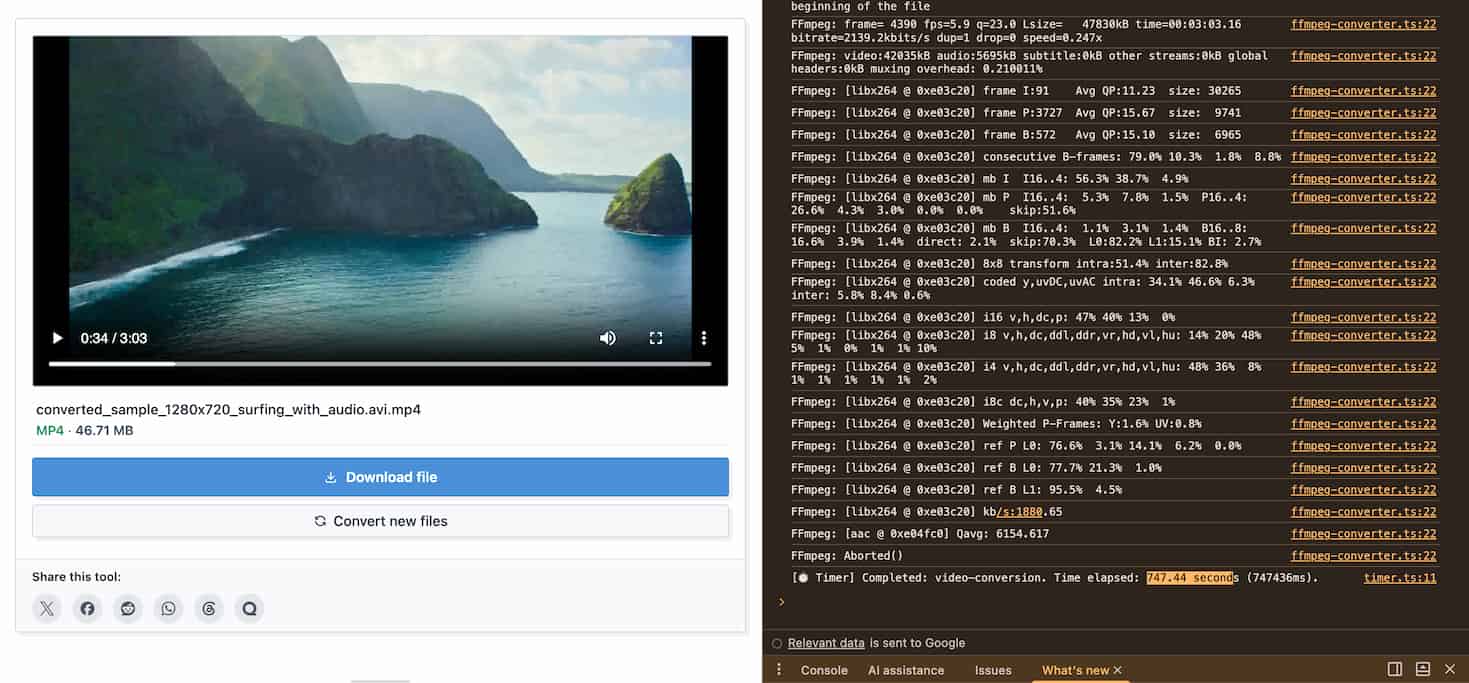
Recently, I spent some time coding a small utility: a video conversion tool that runs entirely within the browser, powered by the FFmpeg core. To put its capabilities to the test, I grabbed my MacBook Air M3 (16GB RAM) to act as a guinea pig, running a conversion of an old AVI file to MP4 directly on Google Chrome.
The results I got were both amusing (lol) and technically fascinating: The stopwatch halted at exactly 747.44 seconds (just over 12.5 minutes), and the famously cool M3 chip made the aluminum chassis noticeably warm to the touch.
So, why does a computer equipped with one of the most powerful chips on the market today have to "break a sweat" for over 12 minutes just to change a video's format? In this article, we will dissect the technical math behind this process, and answer the ultimate question: If it's that slow, why do we even need browser-based processing tools?
1. The First Bottleneck: Remux vs. Transcode
The biggest reason my test took so long wasn't the machine; it was the original file. The file I chose was an older AVI format using legacy compression standards (codecs) like DivX or Xvid.
In the world of video processing, you must distinguish between two core concepts:
- Remux (Copy - Extremely Fast): If your source video already uses a modern codec (like H.264), FFmpeg simply extracts the video and audio "core" and stuffs it into a new MP4 "wrapper." This process is essentially like copying data from one folder to another and takes only a few seconds.
- Transcode (Decode & Encode - Extremely Slow): Because my AVI file used an outdated standard incompatible with MP4, FFmpeg was forced to "rebuild it from scratch." It had to Decode every single frame of the old video, and then Encode that massive stack of frames into the modern H.264/H.265 standard. This pixel-by-pixel grinding is incredibly CPU-intensive.
2. The Reality of WebAssembly (WASM) in the Browser
To run a heavy-duty software like FFmpeg (originally written in C/C++) directly in Google Chrome, I had to utilize WebAssembly (WASM). This is a miraculous advancement for the modern web, but it has a fatal flaw: It cannot fully leverage dedicated hardware acceleration.
If you install a native app like Handbrake or Premiere on a Mac, the software directly calls hardware APIs (like the Media Engine on Apple Silicon) to accelerate rendering. That process is incredibly fast and keeps the machine cool.
However, when running via WebAssembly within Chrome's sandboxed environment, FFmpeg is isolated from these hardware accelerators. It is forced to rely on the pure "muscle" of the CPU (Software Encoding) to run calculations. Even though the M3 chip is immensely powerful, forcing the CPU to run at 100% capacity within a web environment will never match the speed of dedicated hardware processing pipelines.
3. Why Did the M3 MacBook Air Get Hot?
The MacBook Air M3 features a "Fanless" design. It is brilliantly engineered to handle burst tasks with exceptional performance. But when I forced it to continuously render video using pure CPU power for 12 straight minutes (sustained load), the accumulated heat had no fan to blow it away. The machine had to passively cool itself through its aluminum chassis and eventually began to throttle its clock speed to protect internal components.
This actually proves one thing: A browser-based tool is genuinely utilizing your machine's resources to do serious work, not just faking it with a placebo loading bar.
4. So, Where is the Value in This Tool?
You might be asking: "If it's that slow and heats up the machine, why not just download a native app or upload it to a fast online converter? Why use your tool?"
The truth is, Client-side processing architecture delivers immense value that other solutions simply cannot provide:
- Absolute Privacy & Security (Zero-Upload): When you use online conversion sites, you are forced to upload your video to their servers. Can you guarantee they delete it after conversion? With my tool, 100% of the processing happens on your machine's RAM. Not a single byte of data is transmitted over the internet. This is the perfect solution for handling sensitive personal videos, internal company data, or security camera footage.
- Bandwidth Independence: Imagine having a 2GB video file. How long would it take to upload it, wait for the server to convert it, and then download the 2GB result? If your internet is slow or unstable, processing it directly on Chrome locally is significantly faster and more reliable, even if the actual rendering takes 10-15 minutes.
- Convenient & Clutter-Free: Are you using a company computer or a borrowed laptop where you have no Admin Rights to install software? Just open Chrome, and the problem is solved.
5. Conclusion
If you need to batch-convert dozens of massive 4K videos for professional film editing, you should definitely install dedicated desktop software. Every technology has its specific use case.
But if you have a few AVI, MKV, or MOV files that need a quick conversion to MP4, value data privacy, and don't want to install random software, then WebAssembly processing is your best friend.
Understanding the underlying technology helps us choose the right tool for the job. Need to convert videos securely right on your machine? Give our Free Online Video Converter a try (just keep in mind that if your file uses a legacy codec, your machine might get a little warm and it could take a few minutes—perfect time to grab a cup of coffee!).