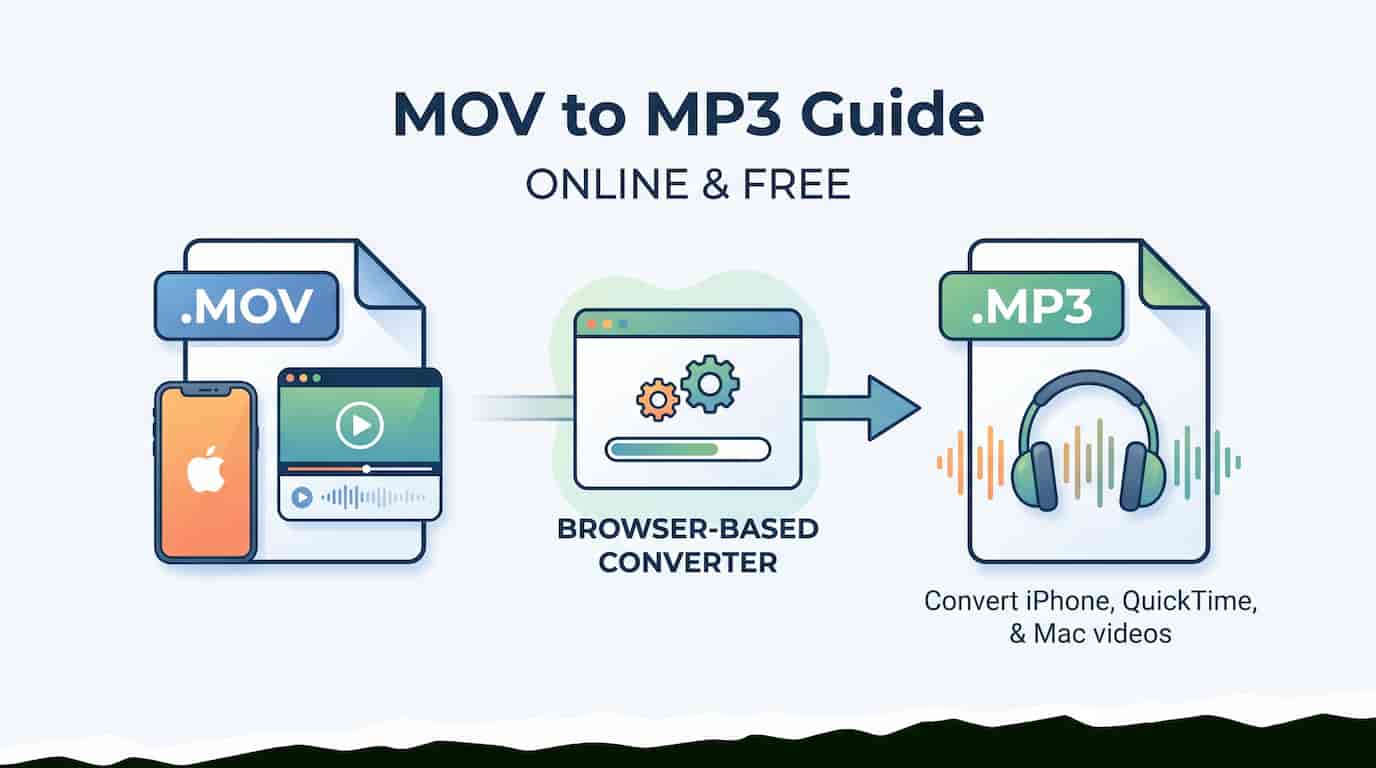
MOV files are extremely common if you use an iPhone, iPad, Mac, QuickTime Player, or many modern cameras. You may record a voice memo as a video, save a lecture from your phone, capture a screen recording on macOS, or receive a QuickTime clip from someone else. The video may be useful, but in many real situations, you only need the audio.
That is where a mov to mp3 converter becomes useful. By converting MOV to MP3, you turn a heavy video file into a smaller, easier-to-play audio file that works on almost any device, app, or transcription service.
The easiest way to do this is with a browser-based Video to MP3 Converter. Instead of installing software or uploading sensitive video files to a cloud server, you can convert a local MOV file directly in your browser and download the MP3 when it's ready — nothing leaves your device.
What Is a MOV File?
A MOV file is a multimedia container format strongly associated with Apple QuickTime. It can store video, audio, subtitles, and metadata all inside one file. The .mov extension is common on videos created by iPhone, iPad, Mac, and QuickTime.
The important thing to understand is that MOV is not just "a video" — it's a container. Inside it, there is usually a separate video stream and audio stream. When you convert MOV to MP3, you're taking the audio stream out of the MOV file and saving it as a standalone MP3 file. If your goal is to listen to the voice, music, or background audio, you don't need to keep the video track at all.
Why Convert MOV to MP3?
Save Audio from iPhone Videos and Voice Notes
Many people record a quick video on an iPhone just to capture sound — a lecture, a conversation, a music idea, a business note. Converting MOV to MP3 keeps the useful part and drops the video weight you don't need.
Shrink Large Files Down
MOV files from iPhone or Mac can easily be tens or hundreds of megabytes, especially in high resolution. The extracted MP3 is a fraction of that size, which makes it easier to store, send, or upload.
Better for Transcription
Many transcription services handle MP3 more reliably than MOV. If you're transcribing a meeting, interview, lecture, or podcast draft, converting to MP3 first usually makes the workflow simpler.
Easier to Share and Play
Some apps and older Windows systems don't preview MOV smoothly. An MP3 file opens instantly almost anywhere you send it — no format compatibility issues.
Better for Listening on the Go
If you want to listen while walking, driving, or studying, a video file is inconvenient. MP3 behaves like a normal audio track and works properly with background playback.
These reasons cover most everyday MOV to MP3 use cases: iPhone voice notes recorded as video, QuickTime screen recordings with narration, lecture recordings, interviews, and quick music ideas captured on video.
How to Convert MOV to MP3 Online
- Open the Video to MP3 tool: Go to the free Video to MP3 Converter.
- Import your MOV file: Drag and drop your
.movfile into the upload area, or select it from your device. - Start the conversion: Click convert and let your browser process the file.
- Download the MP3: Save the extracted audio to your computer or phone.
You don't need a timeline editor, codec settings, or command-line tools — just an upload, a convert, and a download.
Convert MOV to MP3 Without Uploading Your File
Many online conversion websites require uploading your file to a remote server before you get anything back. That's not ideal when your MOV file is a personal iPhone recording, a private meeting, a client interview, a voice memo, or other confidential content — even if a site promises to delete files afterward, you still have to trust its storage policy and security.
A browser-based video to MP3 converter avoids that entirely. Your file is selected from your device, converted locally inside your browser, and saved back to your device as an MP3. Nothing is transmitted anywhere, which matters most for exactly the kind of private recordings MOV files often are.
MOV to MP3 vs MP4 to MP3
MOV and MP4 are both video containers, but they tend to come from different places. MOV is the default on iPhone, iPad, Mac, and QuickTime. If your video came from an Android device, a screen recording tool, or a general online download, you're more likely converting MP4 to MP3 instead.
Either way, the same video to MP3 converter handles both formats, along with WebM, MKV, and AVI, so you don't need a separate tool for each file type.
Audio Quality When Converting MOV to MP3
A common question is whether converting MOV to MP3 reduces audio quality. MOV is a container, so the audio inside it may use different codecs. When you convert to MP3, that audio is re-encoded — MP3 is a lossy format, meaning it removes some data that's less noticeable to human hearing.
For most everyday uses, MP3 quality is more than enough: lectures, interviews, meetings, voice memos, casual music clips, podcast drafts, and personal recordings all sound fine. If you're doing professional music production or mastering, keep the original MOV or export to a lossless format instead — MP3 is built for convenience and compatibility, not studio-grade preservation.
Common Problems When Converting MOV to MP3
The MOV File Has No Audio Track
Some MOV files are silent videos. If there's no audio stream to begin with, the converted MP3 may be empty or the conversion may fail.
The File Is Very Large
Since conversion runs on your device rather than a server, a long or high-resolution MOV file will take longer to process. Speed depends on your CPU, memory, and browser.
The Audio Sounds Quiet
Conversion doesn't fix problems already in the recording. If the source was recorded quietly or with background noise, the MP3 will carry the same issue.
The File Uses an Unusual Codec
Some MOV files, especially from older cameras or professional editing tools, use uncommon codecs. If a file won't convert, try playing it in a media player first to confirm the audio track works.
The Browser Runs Out of Memory
Very long video files can be heavy for browser-based processing. Close other tabs, use an up-to-date desktop browser, and try again.
Final Thoughts
MOV is a useful format, especially inside the Apple ecosystem, but it's not always the right one when you only need the audio. If your file is a lecture, voice note, meeting, interview, or QuickTime recording, converting MOV to MP3 makes it easier to listen to, share, store, and transcribe.
A browser-based MOV to MP3 converter gives you the simplest path: choose your local MOV file, extract the audio, and download an MP3 that works almost anywhere.
Frequently Asked Questions
How do I convert MOV to MP3 online?
Open the Video to MP3 Converter, select your MOV file, start the conversion, and download the MP3 when it's ready.
Can I convert iPhone MOV videos to MP3?
Yes. MOV files are common on iPhone and Apple devices. If your video contains an audio track, you can convert it to MP3 and keep only the sound.
Is MOV to MP3 conversion private?
Yes. With a browser-based converter like UploadLess, the conversion happens locally in your browser. Your file is never uploaded to a server.
Will converting MOV to MP3 reduce audio quality?
Some technical quality loss is possible since MP3 is a compressed format, but for voice recordings, lectures, meetings, and everyday listening, the difference is rarely noticeable.
Why is my MOV file not converting?
The file may have no audio track, use an unusual codec, be too large for your browser's available memory, or be damaged. Try playing the original file first to confirm the audio works.