The best frame in a video is rarely where you expect it. An athlete's peak form lasts a fraction of a second. The clearest expression on someone's face disappears before the next frame. A tutorial step appears for just a moment before the screen scrolls.
This is why frame-by-frame review matters. Instead of pausing at random and hoping for a good image, you move through the video carefully, find the moment that actually looks right, and save that specific frame.
With the free Extract Frames from Video tool, you can move through a video preview in the browser and capture the current frame as a JPG image — without any software installation.
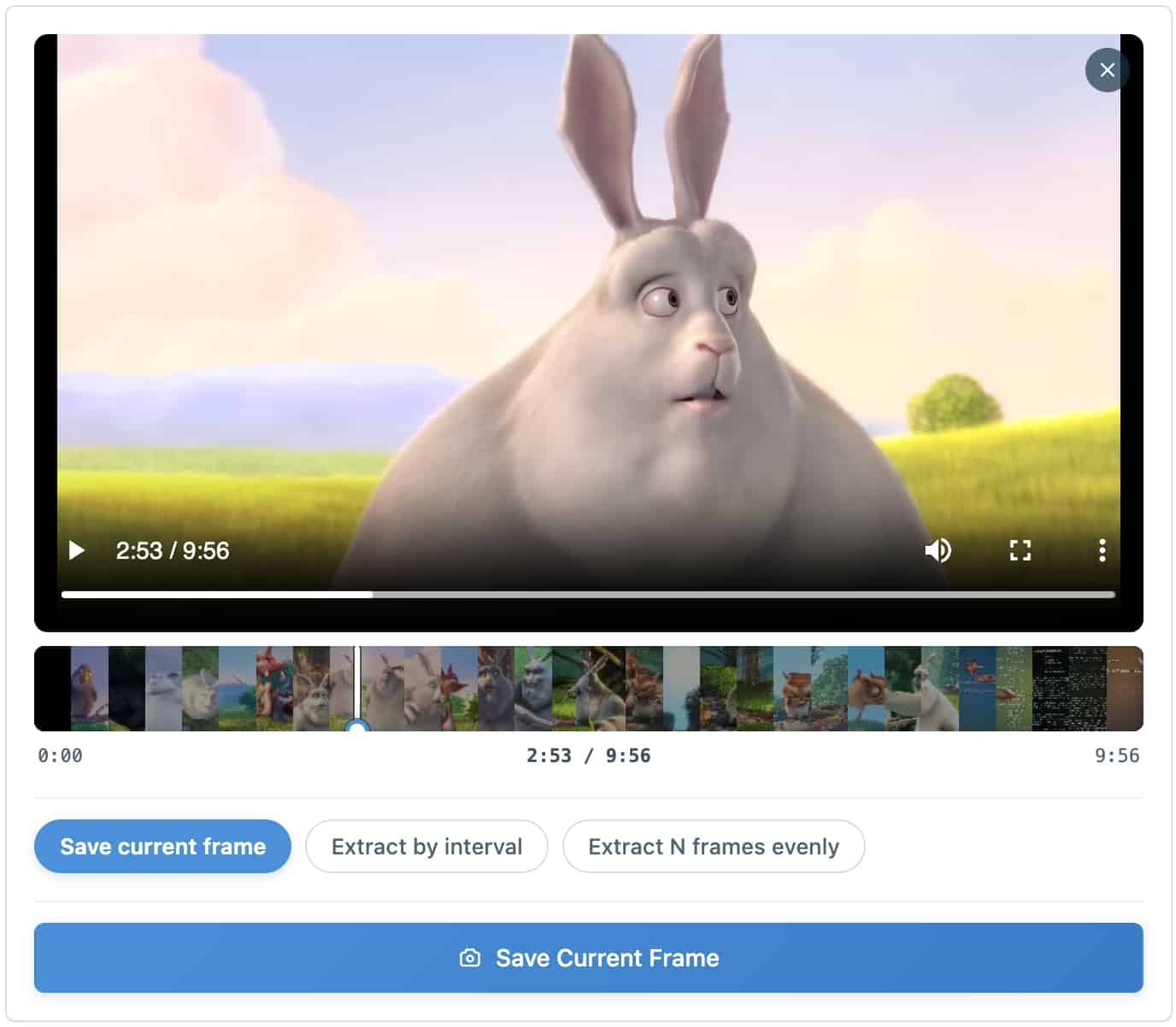
Why Frame-by-Frame Review Makes a Difference
When you watch a video at normal speed, you miss a lot. The best frame in a one-second clip might exist for just 33 milliseconds if the video runs at 30 FPS. A quick pause gives you a rough landing point, but not the precision to pick the best image.
Frame-by-frame review closes that gap. You slow down and inspect individual moments until you find the one that is sharp, well-composed, and shows exactly what you need.
The result is a much better image than you would get from a random pause.
What Frame-by-Frame Review Is Actually Used For
People review video frame by frame for a wide range of reasons:
Choosing a video thumbnail. A good thumbnail requires the right composition, a clear expression, minimal motion blur, and a moment that represents the video well. None of those qualities are obvious at normal playback speed. Once you find the right frame, our guide on taking a clean screenshot from a video covers how to save it without player controls or UI overlays.
Capturing sports and action moments. Whether it is a jump, a catch, a swing, or a landing, the peak of the action lasts one or two frames. Reviewing frame by frame lets you grab exactly that moment.
Saving tutorial steps from screen recordings. If you recorded a software walkthrough, the exact moment when a menu opens, a button activates, or a result appears can be very brief. Frame-by-frame review helps you find and capture that specific step.
Grabbing a frame from a personal video. Family videos, travel clips, and event recordings often contain moments that would make excellent photos — if you could isolate the right frame. Frame extraction lets you do exactly that.
Reviewing product demos and UI recordings. If you are checking how a product or interface looks in motion, pausing at the right frames helps you document specific states.
Analyzing motion and technique. Coaches, athletes, and analysts sometimes review footage frame by frame to study body position, form, or technique.
Finding a clean still for documentation. If you have a video and need one image for a report, presentation, or article, frame-by-frame review helps you find the cleanest version.
Frame-by-Frame Viewer, Frame Extractor, and Video Editor: What Is the Difference?
These tools overlap in some ways, but they have different primary purposes.
| Tool Type | Main Purpose | Best For |
|---|---|---|
| Frame-by-frame viewer | Inspect individual video moments | Finding the right frame |
| Frame extractor | Save selected frames as image files | Downloading JPG frames for use |
| Video editor | Edit, trim, color grade, export | Full production workflows |
If you need to step through a video frame by frame with keyboard navigation, a desktop video player like VLC offers that precision. If your goal is to find a moment and save it as an image you can download and use, a browser-based frame extractor is simpler and faster. If you already know the exact moment and just want one clean image, our guide on how to take a screenshot from a video online walks through that shorter workflow.
The Extract Frames from Video tool is a frame extractor. You move through the video in the browser preview, choose the moment you want, and save the current frame as a JPG.
What Makes a Frame Good Enough to Save?
Not every paused frame looks good as a still image. Here is what to evaluate before saving.
Sharpness
Is the subject sharp or blurred? Motion blur is part of the source video. If the subject was moving fast when the frame was captured, the image will look blurred. Try a moment just before or after the peak action, where the motion is temporarily slowed.
Subject Clarity
Is the main subject clearly visible and easy to understand? Avoid frames where the subject is partly hidden, cropped by the frame edge, or obscured by something in front of them.
Expression and Pose
For people, small differences in timing create very different images. A mid-blink expression, an open mouth, or an awkward arm position can be avoided by testing a few nearby frames. The right frame is often one or two frames away from the first one you try.
Composition
Does the frame feel balanced? Is there dead space where you do not want it? Is the horizon level? These qualities do not change between nearby frames, but they are worth checking before you commit to saving.
Text Readability
If the video contains subtitles, menus, UI text, or overlays, check whether the text is fully visible and readable in the frame. A partially rendered subtitle or a menu that is still animating can make a frame look unfinished.
Lighting and Exposure
Some frames in a video are darker or brighter than surrounding ones, especially during scene transitions or moments where the camera is adjusting exposure. Try nearby frames if the first one looks too dark or washed out.
How to View a Video Frame by Frame and Grab the Best One
The process takes a few minutes and runs entirely in your browser.
Step 1: Open the Frame Extractor
Open the free Extract Frames from Video tool.
Step 2: Upload Your Video
Choose your video file. MP4 works well across most browsers. Use the original video rather than a compressed copy if you want the best image quality.
Step 3: Play and Pause to Find Your Moment
Use the video preview to move through the content. Play the video, pause near the moment you want, then drag the timeline to fine-tune. The preview shows you what the extracted frame will look like.
Step 4: Evaluate the Frame
Before saving, check the frame against the criteria above: sharpness, expression, composition, lighting, and text readability. If anything looks off, drag the timeline slightly forward or backward.
Step 5: Save the Current Frame
Once the frame looks right, use current frame mode to save it as a JPG image. The file downloads immediately.
Step 6: Save Multiple Candidates and Compare
Do not rely on only one frame. Save two or three from nearby moments, compare them side by side, and choose the best one.
Grab Frame from Video: When One Frame Is Not Enough
Sometimes the right frame is hard to find manually, especially in a long video. In those cases, interval extraction or count extraction can speed up the process.
Instead of scrubbing through the entire video, you can:
- Extract one frame every few seconds to get a sampled overview of the full video
- Extract a fixed number of frames spread evenly across the timeline for a quick visual index
Once you have those images, you can review them quickly and identify the section of the video where the best moments are. Then go back to that section in the frame extractor and manually find the exact frame you want.
This two-step approach — broad extraction first, then precise current-frame extraction — works well for long videos, interviews, webinars, and multi-scene recordings.
Capture Frame from Video: Format and Quality
Frames are saved as JPG images. JPG is the standard format for video screenshots because it balances file size and image quality well for photographs and video content.
The quality of the extracted frame depends on the source video:
- A 1080p video produces a 1080p frame
- A 720p video produces a 720p frame
- A compressed or low-resolution video produces a lower-quality frame
There is no way to make an extracted frame sharper than the source video allows. If quality matters, start with the highest-resolution version of the video available.
Get a Frame from MP4, MOV, or WEBM Video
The tool works with the video formats that your browser can decode natively.
MP4 is the most widely supported format and the best default choice for frame extraction.
MOV files, which are common for iPhone recordings and Mac exports, are often supported in modern browsers.
WEBM files, used frequently in browser-based screen recordings and web video, are usually supported.
AVI is an older format with more limited browser support.
If you are trying to extract a frame from an MP4, MOV, or WEBM video, the tool should handle it directly. For AVI or other formats, converting to MP4 first is the safest approach.
Saving Frames Without Uploading the Video
If the video is private — a personal recording, client footage, internal meeting, or unreleased content — you may not want to upload it to a third-party server.
The Extract Frames from Video tool runs entirely in the browser using client-side processing. Your video does not leave your device. No server receives the file, and no account is required to use the tool.
This is important for:
- personal videos and family recordings
- internal work and meeting recordings
- client deliverables and project footage
- unreleased product demos
- private tutorials and training materials
Common Mistakes When Trying to Grab a Frame from a Video
Saving the first frame you pause on. The first frame you land on is rarely the best one. Always test one or two nearby moments before downloading.
Using a compressed copy instead of the original. A video that was sent through a messaging app is often heavily recompressed. The original file produces sharper frames.
Saving at a moment with motion blur. If the subject was in mid-movement when the frame was captured, the blur is part of the image. Move to a moment when the motion slows or reverses.
Not checking the full frame before saving. Zoom out in the preview and check the edges of the frame. A partially cropped subject, an unwanted object at the edge, or a subtitle overlapping the main content can all make the frame less useful.
Extracting every frame when a few would do. If you are trying to find the best thumbnail from a 10-minute video, extracting every frame creates thousands of images. Extract 20 to 50 frames first and narrow down from there.
Final Thoughts
Viewing a video frame by frame is the difference between a random pause and a deliberate choice. The best frame in a video is often one or two moments away from where you first pause — and those small differences can make a significant difference in the quality of the image you end up with.
Use the free Extract Frames from Video tool to move through your video in the browser, find the exact moment you need, and save the current frame as a clean JPG image.
For long videos where you are not sure where the best frames are, use interval or count extraction first to build a quick visual index, then return to the best section to save the specific frame you want.
Frequently Asked Questions
How do I view a video frame by frame?
Use the video preview in the Extract Frames from Video tool. Play, pause, and drag the timeline to move through the video and inspect specific moments.
How do I grab the best frame from a video?
Move through the video preview, find the sharpest and most well-composed moment, and save it using current frame mode. Test a few nearby frames before making your final choice.
How do I capture a specific frame from a video?
Open the frame extractor, upload your video, move to the exact moment, and save the current frame as a JPG image.
Can I get one frame from a video without extracting the whole thing?
Yes. Use current frame mode to save one selected frame. You do not need to extract the entire video.
Why does the saved frame look blurry?
Motion blur is part of the source video. Try a moment just before or after the action, where the subject is more stationary.
Can I save a frame from an MP4 video?
Yes. MP4 is the most commonly supported format. Upload the video and save the current frame as a JPG.
What format is the saved frame?
Frames are saved as JPG images.
Can I save multiple frames from the same video?
Yes. You can save frames one at a time using current frame mode, or extract several frames at once using interval or count mode.
Is the video uploaded to a server?
No. The tool processes the video locally in your browser. The file stays on your device.
Can I use this for sports or action video?
Yes. Move through the video to the peak of the action and save that frame. A 1-second interval extraction can also help you identify candidate moments in longer clips.