The MP4 file format is universally recognized as the default standard for consumer video distribution. It plays effortlessly on almost any smartphone, streams smoothly across social networks, and serves as a reliable default for basic recording. However, a common mistake is assuming that MP4 is the ideal solution for every stage of a video production or web development workflow.
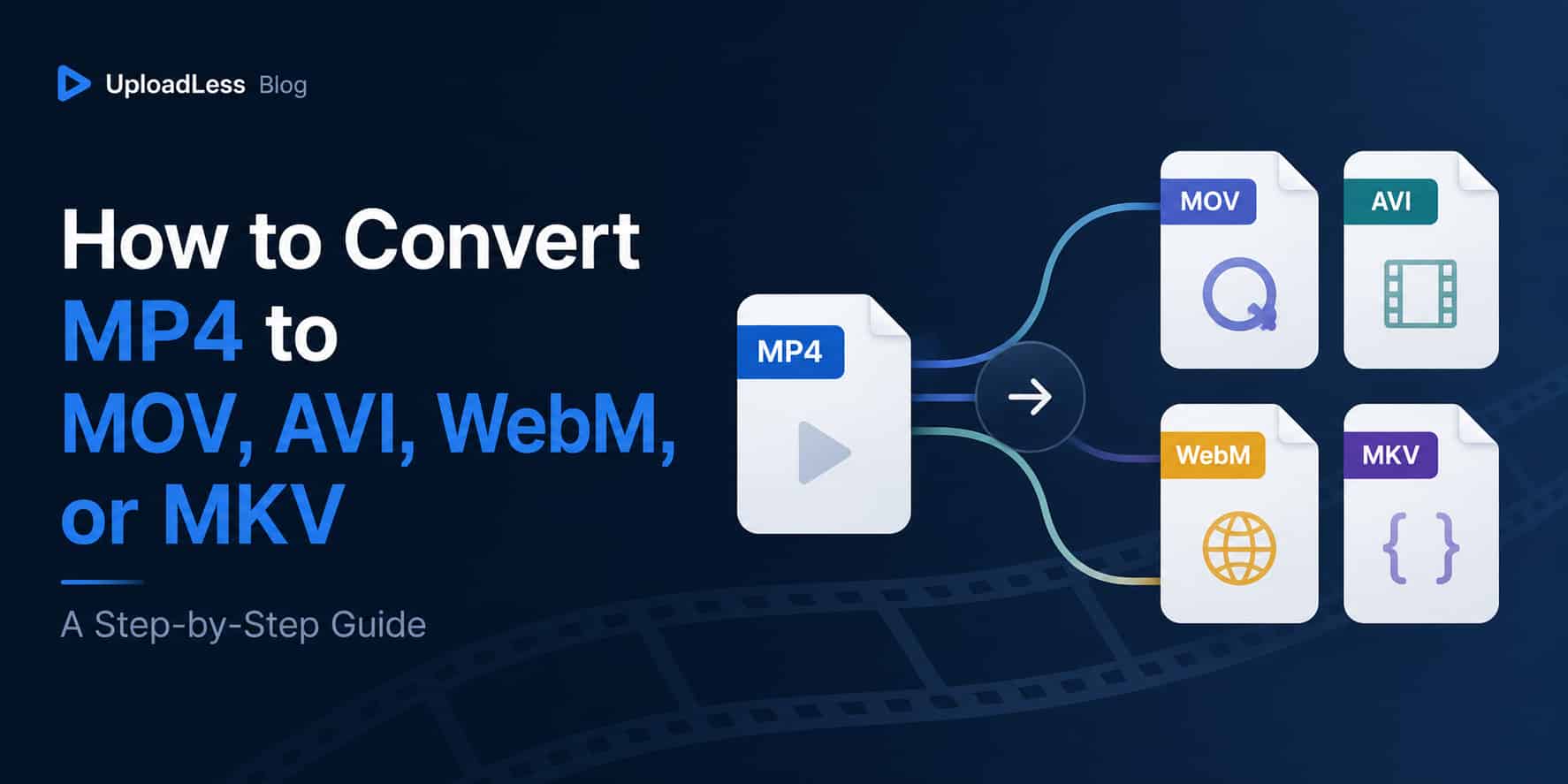
As a project moves from simple distribution into professional post-production pipelines, cross-platform app development, or specialized web optimization, the limitations of MP4 quickly become apparent. You will frequently find yourself needing to convert standardized MP4 files into alternative containers like MOV, AVI, WebM, or MKV to meet strict system requirements.
Real-World Scenarios for Alternative Extensions
Converting a standard MP4 into an alternative container framework is often necessary when working in specialized production environments.
1. MP4 to MOV: Professional Editing and Post-Production
If you are moving project assets into high-end editing software on macOS or handing off video files to an audio engineer working in Pro Tools, converting to MOV is highly recommended. The MOV container integrates seamlessly with Apple's native AVFoundation layer, minimizing rendering times and preventing unexpected frame-rate stuttering during frame-by-frame scrubbing. Pair the container with H.264 for general editing, or Apple ProRes for color-critical finishing work.
2. MP4 to WebM: Next-Gen Web Performance
For software engineers and web developers, utilizing raw MP4 files for UI background videos or interactive animations can negatively impact page load speeds. Converting MP4 assets to WebM lets you take advantage of highly efficient VP9 or AV1 compression algorithms. This slashes file sizes significantly, ensuring snappy page loads — and unlike MP4, WebM supports an alpha transparency channel for custom-shaped video elements.
3. MP4 to MKV: High-Fidelity Archiving
If you are compiling comprehensive digital video archives, the basic MP4 container is too restrictive. It cannot reliably hold multiple separate subtitle tracks or alternative language audio channels within a single file. Swapping your framework to an MKV layout (typically with H.264 or H.265 video inside) gives you the flexibility to package unlimited audio, video, and text streams together into one clean file.
4. MP4 to AVI: Legacy Infrastructure Compatibility
In certain industrial settings, enterprise environments, or when working with older corporate software, systems are hardcoded to accept only legacy media extensions. Converting your modern MP4 into an AVI file ensures backward compatibility with these older tools without requiring a complete hardware overhaul. If you are also dealing with the reverse problem — a pile of old AVI, MPEG, or WMV files that modern devices refuse to play — see the dedicated guide to converting legacy formats to MP4.
Convert Proprietary Footage Without It Leaving Your Machine
The files that need these specialized conversions are rarely casual clips. They are client deliverables, unreleased marketing footage, or raw project assets — exactly the material you cannot justify uploading to a third-party cloud server just to change a container.
This is the problem the site's client-side architecture solves. The conversion engine, built on the WebCodecs API with WebGPU acceleration, executes entirely inside your browser's memory sandbox. When you use the video file converter, the browser reads the MP4 from your local drive, transcodes it on your own graphics hardware, and writes the MOV, WebM, MKV, or AVI output straight back to disk. At no point does any frame of your footage cross the network. This applies at any resolution — even multi-gigabyte masters, as covered in the guide on converting large 4K and HD videos.
Step-by-Step Conversion Guide
Converting your MP4 files into alternative container formats takes just a few simple steps:
- Launch the Core Canvas: Navigate to the browser-based video format converter.
- Import Your MP4 Assets: Drag your
.mp4file from your desktop and drop it into the designated drop zone. - Specify the Output Target: Open the format dropdown menu and select your desired destination extension:
.mov,.avi,.webm, or.mkv. - Execute and Save: Click the conversion button. The engine will process the file locally in browser memory and prompt you to download your new alternative asset file instantly.
Frequently Asked Questions
Will converting my MP4 file to WebM reduce the visual quality of the video?
Because WebM uses highly efficient modern video compression algorithms (like VP9 or AV1), it can compress video files to a fraction of an MP4's file size while maintaining near-identical visual quality. It is an excellent choice for optimizing web performance without sacrificing clarity.
Should I install HandBrake or another desktop app instead of using a browser tool?
For a one-off container conversion, a desktop suite is usually overkill: you have to download an installer, grant it system permissions, and learn its settings before touching your file. A browser-based engine performs the same local, hardware-accelerated conversion the moment the page loads — with nothing installed and nothing to uninstall afterward. Desktop apps still make sense for advanced batch scripting or filter-heavy workflows.
Can I convert an MP4 into a WebM file that supports transparent backgrounds?
Yes. Unlike standard MP4 files, which always require solid background pixels, the WebM container natively supports an alpha transparency channel when encoded with the VP9 codec. This makes it perfect for web designers looking to embed custom-shaped video elements or animations that blend seamlessly into changing website backgrounds.
Why do some converted MOV files take longer to open on older Windows machines?
The MOV container was originally engineered specifically for Apple's QuickTime framework. While modern Windows applications handle it well, older media players may struggle to parse the container headers efficiently. If your primary target audience uses older Windows devices, sticking with MP4 or converting to AVI is generally recommended.
Is it safe to use this tool for confidential corporate projects or unreleased content?
Yes. Because the transcoding runs inside your own browser rather than on a remote server, there is no upload step to intercept, no server-side copy to leak, and no retention policy to worry about. The footage exists only on your machine before, during, and after the conversion.