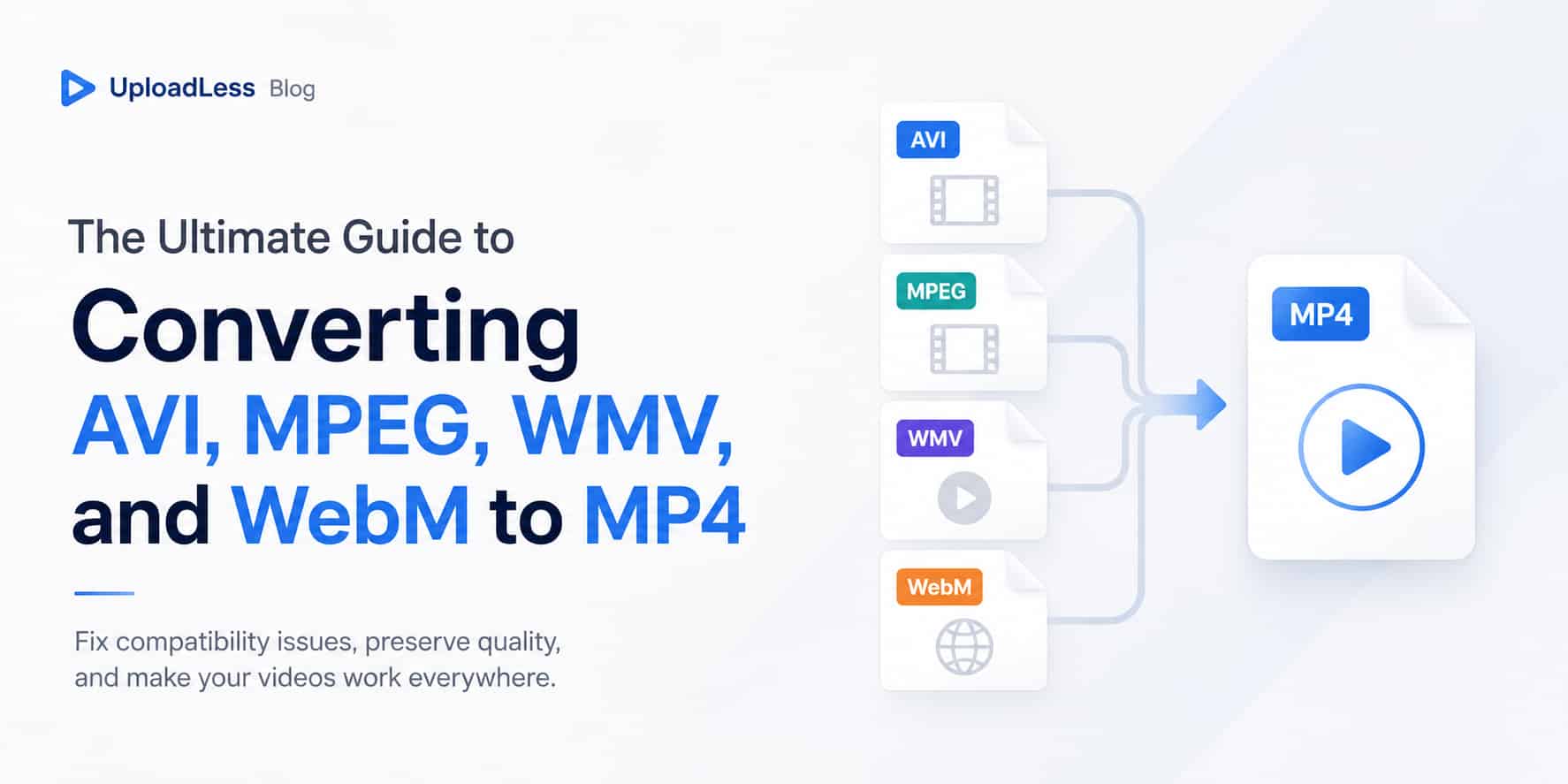
The landscape of digital video formatting is fragmented. Over the last three decades, various technology conglomerates have introduced proprietary media containers designed to lock users into specific operating ecosystems or web standards. Whether you are dealing with decades-old family archives saved as AVI or MPEG files, enterprise video assets locked in Microsoft's legacy WMV format, or modern web-optimized WebM clips downloaded from internet forums, managing these mixed assets can easily stall a digital workflow.
To fix these playback and distribution issues once and for all, converting these disparate files into standardized, high-performance MP4 video files is the most reliable strategy.
The Anatomy of the Source Formats
Before jumping into the conversion process, it is useful to review the engineering history and structural limitations of the specific video formats you are attempting to transform.
AVI (Audio Video Interleave)
Introduced by Microsoft in 1992 as a core component of its Video for Windows technology, AVI files are notoriously complex. Because the format lacks standard metadata structural definitions, it acts as an unpredictable container shell. An AVI file can be compressed with hundreds of obsolete, third-party video codecs. Trying to play an AVI file today often results in a "Missing Codec" error message on modern operating systems — and because AVI predates modern compression, these files are also enormous for the quality they deliver.
MPEG (Moving Picture Experts Group)
MPEG-1 and MPEG-2 are the technological foundation of digital media, powering consumer formats like Video CDs and DVDs since 1993. While revolutionary at the time, their underlying compression math is wildly inefficient compared to modern standards. Keeping files in raw MPEG formats wastes valuable hard drive space and guarantees that modern smartphones will refuse to open the assets.
WMV (Windows Media Video)
WMV was designed by Microsoft in 1999 to handle web streaming during the dial-up and early broadband eras. It was engineered to integrate tightly with Windows Media Player and Windows Server streaming protocols. Consequently, WMV files are inherently hostile to alternative ecosystems. Trying to open a native WMV asset on an Apple iPhone, an Android tablet, or a modern television editing workspace usually results in a complete playback failure.
WebM (The Modern Web Container)
Sponsored heavily by Google since 2010, WebM is an open-source, royalty-free container designed strictly for real-time internet streaming. Utilizing highly efficient video codecs like VP8, VP9, or AV1, WebM files pack impressive visual clarity into incredibly small file sizes.
While WebM works beautifully inside Google Chrome or Mozilla Firefox web browsers, it is not native to mobile hardware frameworks. You cannot drop a raw WebM file into your standard Apple Photos app, nor can you easily import it into stock mobile editing applications. For creators on the move, WebM presents a continuous hurdle.
Why MP4 is the Universal Conversion Target
Converting these legacy and web-specific structures into MP4 files using standard H.264 and AAC configurations instantly resolves your technical overhead:
- Hardware-Accelerated Architecture: Modern chipsets (from Apple Silicon to Intel and AMD processors) have physical silicon blocks dedicated entirely to processing H.264/MP4 media streams. This means your computer or phone doesn't have to work hard to play an MP4 file, preventing lag and extending your battery life.
- Unified Social and Web Infrastructure: Every web deployment tool, social network upload algorithm, and corporate learning management system natively expects standard MP4 video input.
- Efficient Long-Term Asset Storage: Replacing raw MPEG or uncompressed AVI frameworks with streamlined H.264/MP4 pipelines can reduce file storage overhead by up to 70% without noticeable visual degradation.
MP4 is the endpoint for most workflows, but not all of them. If you ever need to travel in the opposite direction — for example, exporting MP4 footage into an editing or web-development pipeline — see the companion guide on converting MP4 to MOV, AVI, WebM, or MKV.
Converting Legacy Files Without Uploading Them
Old family archives and internal company videos are exactly the kind of files people are most reluctant to upload to an anonymous cloud server — and with decades-old AVI or MPEG files, the sheer size of the originals makes uploading painful anyway.
That is why this site's conversion engine runs entirely on your own machine. Using the browser's WebCodecs API, the video format converter reads the file directly from your local disk, decodes the legacy stream inside the browser's secure sandbox, and re-encodes it to MP4 using your computer's own hardware. Zero bytes are transmitted over the internet at any point:
- Input: the file is read from your local hard drive through standard browser sandbox access — nothing is uploaded.
- Transcoding: decoding and re-encoding run in your system RAM and GPU, completely offline.
- Output: the finished MP4 is assembled in browser memory and saved straight back to your disk.
Your data remains entirely under your control, and the processing speed is limited only by your computer's actual hardware performance. If your archive includes very large HD or 4K masters, the same architecture handles those too — see how to convert large 4K and HD videos without a watermark.
Step-by-Step Conversion Workflow
Converting alternative video formats into globally compliant MP4 files is simple and straightforward:
- Open the Converter: Launch the browser-based AVI to MP4 converter — the same tool handles MPEG, WMV, and WebM sources automatically.
- Import Your Target Videos: Drag your
.avi,.mpeg,.wmv, or.webmfiles into the browser processing canvas. - Run the Transcoder: Press the conversion button. The browser will leverage local hardware acceleration to quickly re-encode your video frames without requiring any manual setup.
- Download Your Optimized MP4: Once the progress tracker finishes, click download to save the final MP4 file directly back to your local storage folder.
Frequently Asked Questions
Does converting old AVI or MPEG files to MP4 improve their original quality?
No. A converter cannot add visual detail that wasn't captured in the original recording, and you should be skeptical of any tool that claims otherwise. What conversion does deliver is compatibility and stability: the MP4 output plays smoothly on modern phones, TVs, and editing software, without the codec errors and stuttering that plague legacy containers.
Why do WebM files sometimes fail to display correctly on an iPhone?
Apple's iOS operating system relies on hardware architecture that does not natively decode WebM container formats or certain open-source VP9 profiles inside system-level apps like Photos or Safari. Converting those files to MP4 maps the frames into standard H.264 formats that iOS devices can instantly read.
Will my audio quality suffer when converting a legacy WMV file to MP4?
The audio track is re-encoded into the modern AAC standard at a high bitrate, which preserves the source quality as closely as possible — in normal listening, the difference is inaudible. Note that conversion cannot remove compression artifacts that already exist in the original recording; it simply carries the audio into a format every modern device understands.
Can I batch-convert multiple files simultaneously using this browser utility?
Yes. The client-side multi-threading architecture allows you to queue multiple assets at the same time. The local processing engine distributes the encoding tasks across your CPU cores and GPU threads, avoiding the tedious task of converting one file at a time.
Is there a file size limit for converting videos on this site?
Because this platform processes files entirely on your computer, there are no restrictive server-side file caps. You can comfortably drop large video assets into the tool without worrying about server timeout errors or data upload caps.