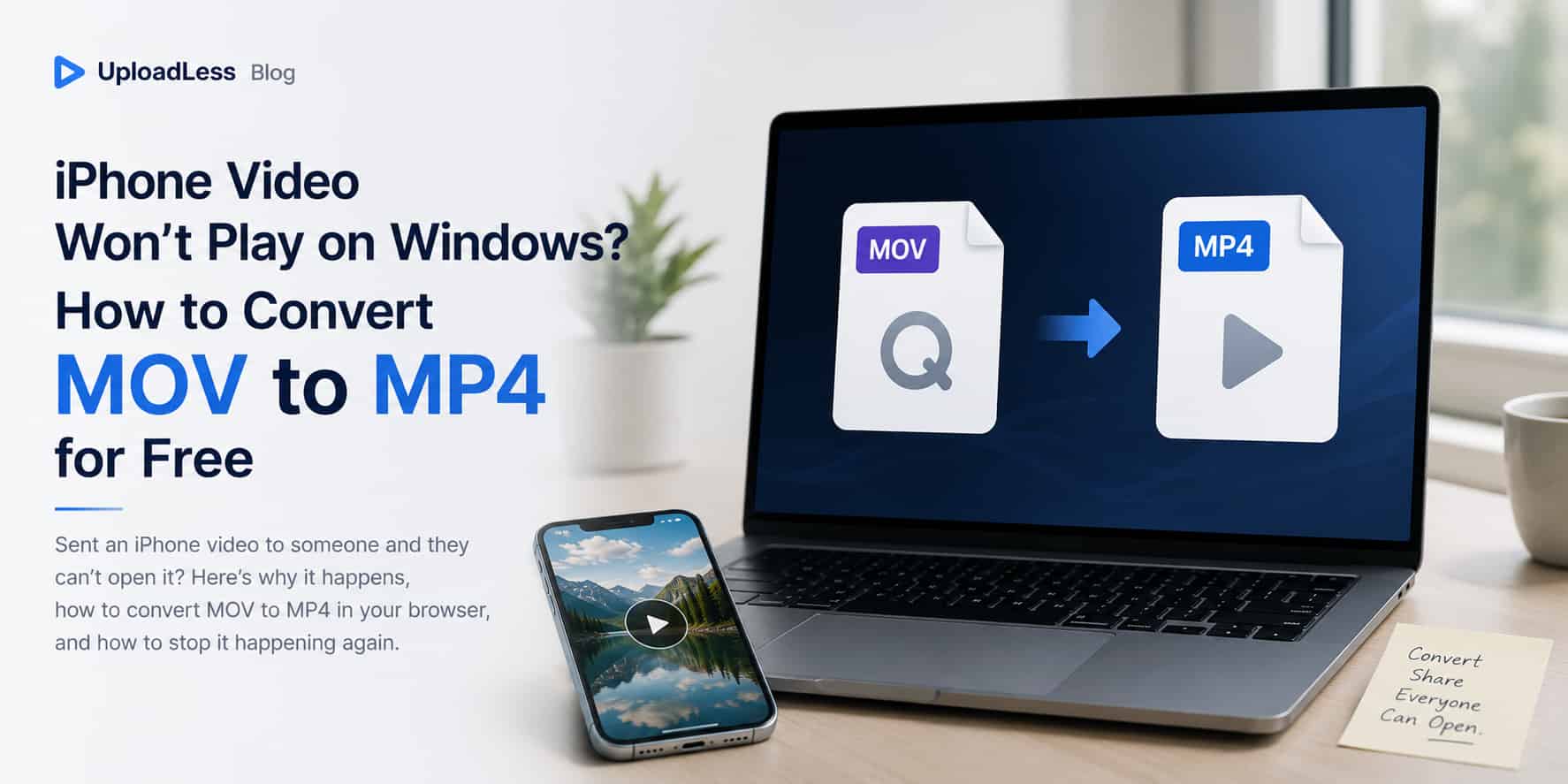
You record a video on your iPhone, send it to a coworker or family member on Windows, and get the reply nobody wants: "It won't open." Or you try to drop the clip into a PowerPoint presentation and get a blank box. Or Windows offers to play it — if you pay $0.99 for something called an "HEVC Video Extension."
Nothing is wrong with your video. It's just saved in a format the other side can't read. Here's the two-minute fix, and how to keep it from happening again.
Why iPhone Videos Won't Open on Windows
iPhones save every video as a MOV file — Apple's own video format. On top of that, since iOS 11 the camera compresses footage with HEVC (also called H.265) by default, because it produces the same quality at about half the file size. Great for your phone's storage; bad for everyone else.
On a Mac, none of this matters. On Windows and many Android devices, both layers cause trouble:
- Windows Media Player and the Photos app often can't decode HEVC out of the box — Microsoft sells the codec separately for $0.99.
- PowerPoint, older editing programs, and many company tools simply reject MOV files.
- Even when playback works, thumbnails may show up black, which makes people think the file is broken.
Converting the video to MP4 solves all of it at once. MP4 is the one format that everything opens: every version of Windows, every phone, every editor, every website.
How to Convert MOV to MP4 (Right in Your Browser)
You don't need to install a converter app or upload your video to some website's server. This free MOV to MP4 converter does the whole job inside your browser:
- Open the converter and drop in your MOV file. It loads instantly, because the file is never uploaded — everything runs on your own computer.
- Choose MP4 as the output format.
- Click Convert and wait for the progress bar. A typical iPhone clip takes well under a minute.
- Save the MP4 and send it. It will open for everyone this time.
Because the video never leaves your device, this works just as well for private family moments as it does for anything else — there's no server on the other end, no account, and no watermark on the result.
One honest note on quality: converting re-compresses the video, but with sensible settings the difference is invisible in normal viewing. Your 4K and 60fps footage stays 4K and 60fps. If you're working with especially long or heavy iPhone recordings, the same engine handles those too — see how to convert large 4K and HD videos.
Stop the Problem at the Source: One iPhone Setting
If you regularly share videos with Windows users, you can make your iPhone record in a compatible format from the start:
- Open Settings → Camera → Formats.
- Switch from High Efficiency to Most Compatible.
From then on, new recordings use H.264, which Windows plays natively. The trade-off is real, though: your videos will take roughly twice the storage space, and Most Compatible mode doesn't support some of the highest recording settings (like 4K at 60fps on many models). That's why plenty of people leave the camera on High Efficiency and just convert the occasional video that needs to travel — you keep the storage savings and only spend a minute converting when it matters.
There's also a middle path worth knowing: in Settings → Photos, under "Transfer to Mac or PC," the Automatic option converts videos to a compatible format when you copy them to a computer over cable. It's handy, but it doesn't help with files you share by email, chat, or cloud links — those still go out as HEVC MOV.
When You Should Keep MOV
Not every MOV needs converting. If the video stays inside the Apple world — your own iPhone, your Mac, iCloud, AirDrop to another Apple device — MOV works perfectly and the HEVC compression is saving you real storage space. Editors working in Final Cut or other Mac software may even prefer MOV.
Convert when the video needs to leave that world: a Windows recipient, a PowerPoint deck, an upload form that rejects the file, an Android group chat. And if you ever need to go the other direction — turning an MP4 into MOV or another format for an editing workflow — the same tool converts MP4 to MOV, AVI, WebM, and MKV as well.
Frequently Asked Questions
Will converting my iPhone video lose quality?
Not visibly. The conversion re-encodes the footage at settings chosen to match the original, and resolution and frame rate are preserved — 4K stays 4K, slow motion stays smooth. What you filmed is what you get, just in a format everything can open.
Why does the video play fine on my Mac but not on Windows?
Macs ship with built-in support for both the MOV format and HEVC compression, because both are Apple technologies. Windows supports neither out of the box — HEVC playback is a paid add-on — so the same file behaves completely differently on the two systems.
The converted file is bigger than the original. Is that normal?
Yes, and it's expected. HEVC (your iPhone's default) compresses about twice as efficiently as the H.264 used in standard MP4s, so trading compatibility for size is normal. If the MP4 is too large to email, compressing it is a separate step from converting it — a video compressor can shrink it down afterward.
Can I convert iPhone videos to MP4 on the iPhone itself?
For short clips, yes — the browser-based converter runs on iPhone too. For long or 4K recordings, mobile browsers can run out of memory, so a computer is the more reliable place to convert big files.
What about ProRes videos from iPhone Pro models?
ProRes files are enormous and meant for professional editing, where they should stay in their original format. If you just need to share a ProRes clip casually, converting it to MP4 works and will shrink it dramatically — but expect the conversion to take longer than usual because the source files are so large.