Screenshots are useful, but the text inside them is usually locked. You can see the words, but you cannot always select, copy, or edit them.
The quickest fix is to use a free image to text converter. Upload your screenshot, run OCR, and copy the extracted text.
What Does Screenshot to Text Mean?
Screenshot to text means using OCR to read text inside a screen capture and convert it into editable text.
A screenshot is just an image. Even if it contains words, your computer usually sees it as pixels, not selectable text. OCR solves this by detecting letters and reconstructing them as normal copyable text.
For example, you may have a screenshot of an error message:
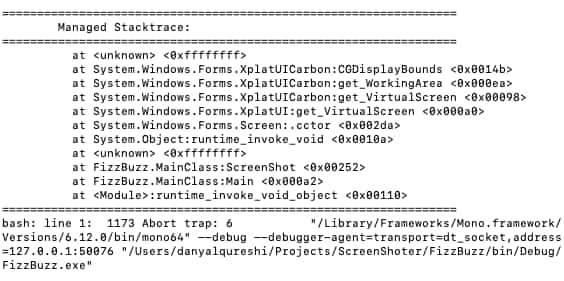
OCR can extract the text so you can paste it into Google, a support ticket, a document, or an AI chat:
Managed Stacktrace:
=
at <unknown> <0xffffffff>
at System.Windows.Forms.XplatUICarbon:CGDisplayBounds <0x0014b>
at System.Windows.Forms.XplatUICarbon:get_WorkingArea <0x000ea>
at System.Windows.Forms.XplatUICarbon:get_VirtualScreen <0x00098>
at System.Windows.Forms.XplatUf:get_VirtualScreen <0x000a0>
at System.Windows.Forms.Screen:.cctor <0x002da>
at System.Object:runtime_invoke_void <0x0010a>
at <unknown> <0xffffffff>
at FizzBuzz.MainClass:ScreenShot <0x00252>
at FizzBuzz.MainClass:Main <0x000a2>
at <Module>:runtime_invoke_void_object <0x00110>
:====
bash: line 1: 1173 Abort trap: 6 "/Library/Frameworks/Mono.framework/
Versions/6.12.0/bin/mono64" --debug --debugger-agent=transport=dt_socket,address
=127.0.0.1:50076 "/Users/danyalqureshi/Projects/ScreenShoter/FizzBuzz/bin/Debug/
FizzBuzz.exe"
This is much faster than typing the message manually.
When You Need to Copy Text from a Screenshot
People take screenshots constantly: app screens, website sections, receipts, chat messages, documents, dashboards, error messages, and social posts. But when the original text cannot be selected, OCR becomes useful.
1. Copy Error Messages
Developers, office workers, and everyday users often screenshot errors from apps, websites, browsers, or software tools. Instead of typing the whole message manually, you can extract it with OCR and paste it into search or documentation.
2. Extract Text from Apps
Some apps do not let you select text. This can happen in mobile apps, locked documents, image-based interfaces, video frames, or old software screens.
A screenshot OCR tool lets you capture the screen and extract the text anyway.
3. Save Text from Images and Social Posts
Social media posts, quote images, infographics, and announcement graphics often contain text as part of the image. OCR lets you copy that text for notes, translation, research, or archiving.
4. Copy Text from Receipts and Confirmations
Many payment confirmations, order summaries, travel bookings, and receipts are saved as screenshots. If you need the order number, address, price, or date, extracting text is much quicker than typing manually.
5. Turn Screenshots into Notes
Students and researchers often screenshot slides, PDFs, web pages, or online courses. OCR helps turn those screenshots into editable notes.
If your screenshot is actually a photo or JPG image, you can extract text from it the same way with the Image to Text tool.
How to Extract Text from a Screenshot Online
You do not need to install a heavy OCR app. You can use a browser-based tool and finish the process in a few steps.
Step 1: Take a Clear Screenshot
Capture the part of the screen that contains the text. Try to avoid unnecessary background or extra UI if you only need a small section.
Step 2: Open the OCR Tool
Go to the Image to Text Converter. It can read text from screenshots, images, photos, and document captures.
Step 3: Upload or Paste the Screenshot
Upload your screenshot file. If your browser and device support clipboard image pasting, you may also paste the screenshot directly into the tool.
Step 4: Run OCR
The OCR engine scans the screenshot and extracts visible text. Printed UI text, document text, and clear error messages usually work well.
Step 5: Copy and Clean the Result
Copy the extracted text. If the output includes broken lines or extra spaces, clean it up before using it in a document, ticket, email, or note.
What Screenshot Formats Work Best?
Screenshots are commonly saved as PNG, JPG, JPEG, or WebP depending on your device and app.
| Format | Common Source | OCR Notes |
|---|---|---|
| PNG | macOS, Windows, many screenshot tools | Usually very good for OCR because text edges stay sharp |
| JPG/JPEG | Phones, compressed image exports | Works well if not too compressed |
| WebP | Browser or web app exports | Works if the tool supports it |
| HEIC | Some iPhone workflows | May require conversion depending on browser support |
For OCR, PNG screenshots often work best because they keep UI text sharp. JPG can also work well, but heavy compression may blur small letters.
Screenshot OCR Works Best With Clear Text
OCR accuracy depends on how readable the screenshot is. If the text is crisp and large, the result is usually good. If the screenshot is tiny, blurry, or compressed, mistakes are more likely.
Good Screenshot OCR Inputs
OCR usually works well with:
- error messages
- app screens
- website text
- form labels
- invoices
- receipts
- PDF screenshots
- slide screenshots
- code snippets with clear fonts
- order confirmations
- chat screenshots with readable text
Difficult Screenshot OCR Inputs
OCR may struggle with:
- tiny text
- blurry screenshots
- low-resolution images
- screenshots from videos
- text over busy backgrounds
- stylized fonts
- curved or distorted text
- mixed languages
- heavily compressed screenshots
- screenshots with multiple columns
If the result is messy, try taking a closer screenshot of only the text area.
Tips to Get Better Text from Screenshots
Capture Only the Text Area
Do not screenshot the entire screen if you only need one paragraph or one error message. Cropping around the text gives OCR less noise to process.
Use the Original Screenshot
Avoid sending the screenshot through messaging apps before OCR. Many chat apps compress images and make small text harder to read.
Zoom In Before Taking the Screenshot
If the text is small, zoom in first. Larger text produces better OCR results.
Avoid Motion Blur
If you are taking a screenshot from a video, pause on a clear frame. Motion blur can make letters unreadable.
Use High Contrast Mode When Possible
Dark text on a light background, or light text on a dark background, is easier to detect than low-contrast text.
Review Important Text Manually
OCR can make small mistakes, especially with numbers, codes, names, and symbols. Always proofread important output.
Copy Text from Screenshot vs Image to Text
Screenshot to text is a specific type of image to text conversion.
| Task | Source | Typical Use |
|---|---|---|
| Screenshot to text | Screen capture from app, web page, video, PDF | Copy visible text that cannot be selected |
| Image to text | Photos, scanned pages, screenshots, document images | General OCR for any image |
| JPG to text | JPG/JPEG photos or scans | Extract text from image files |
| Handwriting OCR | Handwritten notes or notebook photos | Convert handwritten words into editable text |
If your source is a photo, scanned JPG, or handwritten notes, the Image to Text tool handles those too.
Why Browser-Based Screenshot OCR Is Useful for Privacy
Screenshots often contain sensitive information. A screenshot might include:
- private messages
- email content
- order numbers
- account details
- work dashboards
- client information
- error logs
- internal documents
- school records
- payment confirmations
Many OCR websites require you to upload your screenshot to a remote server. That is not always ideal, especially if the screenshot contains personal or business information.
A browser-based image to text tool is useful because it can process your screenshot locally in your browser. You get the convenience of an online OCR tool while keeping the workflow more private.
This is especially helpful for work screenshots, support tickets, financial information, client messages, and internal app screens.
Common Screenshot to Text Use Cases
For Developers
Developers often need to copy error messages, logs, terminal screenshots, UI bug reports, and messages from screenshots shared by users. OCR makes it easier to search, debug, and document the issue.
For Students
Students can extract text from slides, lecture screenshots, learning apps, scanned handouts, and online course materials.
For Remote Workers
Remote workers can copy text from meeting screenshots, dashboards, task boards, confirmation pages, and internal tools.
For Customer Support
Support teams can extract error messages, order IDs, user screenshots, device information, and troubleshooting text.
For Everyday Users
Anyone can copy text from receipts, social media posts, images, app screens, travel bookings, or screenshots saved on a phone.
Can OCR Extract Text from Screenshots of Videos?
Yes, but the result depends on image clarity.
If you take a screenshot from a paused video, OCR can read visible text if the frame is sharp. This works for subtitles, slides, captions, signs, tutorial screens, or presentation text.
However, video screenshots often have motion blur, compression artifacts, and small text. For better results:
- pause the video on a clear frame
- increase video quality if possible
- make the video full screen
- crop the screenshot around the text
- avoid frames with motion blur
OCR can extract visible text, but it cannot recover text that is too blurred or hidden.
Can OCR Copy Text from Protected PDFs?
If a PDF does not allow text selection, taking a screenshot and running OCR may help you extract visible text. This is useful for image-based PDFs, scanned documents, or documents where text selection is unavailable.
However, you should only process files you own, created, have permission to use, or are legally allowed to access. OCR is a productivity tool, not a way to bypass rights or restrictions.
If you regularly work with scanned pages saved as images, the Image to Text Converter can help you turn those screenshots or scans into editable text.
Limitations of Screenshot OCR
OCR is helpful, but it is not perfect.
It May Misread Similar Characters
Characters like O and 0, I and 1, or B and 8 can be confused. This matters for codes, passwords, serial numbers, and IDs.
It May Break Line Formatting
OCR may insert line breaks where the screenshot wraps text visually. You may need to clean up the result before using it.
It May Struggle with Tables
Screenshots of tables can lose structure. OCR may extract the text but not preserve columns perfectly.
It Cannot Read Hidden Text
OCR only reads visible text. If part of the text is cut off, covered, blurred, or too small, the tool cannot reconstruct it accurately.
It May Struggle with Decorative Fonts
Stylized text, low-contrast graphics, curved text, or text over images may reduce accuracy.
Final Thoughts
Screenshots are great for capturing information, but they are not always easy to reuse. When you need to copy text from a screenshot, OCR is the simplest solution.
Use the free Image to Text Converter to extract text from screenshots, app screens, error messages, receipts, document images, and saved screen captures directly in your browser.
Instead of retyping everything by hand, upload the screenshot, run OCR, copy the result, and keep working.
Frequently Asked Questions
How do I copy text from a screenshot?
Open the Image to Text Converter, upload your screenshot, run OCR, and copy the extracted text.
Can I extract text from a screenshot online?
Yes. A screenshot is an image, so an OCR tool can read the visible text and convert it into editable text.
What screenshot format is best for OCR?
PNG usually works best because it keeps text sharp. JPG also works if the image is clear and not heavily compressed.
Can I paste a screenshot directly into the OCR tool?
If your browser and device support clipboard image pasting, you may be able to paste a screenshot directly. Otherwise, save the screenshot and upload it.
Can OCR read text from app screenshots?
Yes, as long as the text is visible and clear. OCR can extract text from app screens, browser screens, dashboards, forms, receipts, and error messages.
Can I extract text from a video screenshot?
Yes, if the video frame is clear. Pause the video, capture a sharp frame, and upload it to the OCR tool.
Is screenshot OCR private?
UploadLess is designed around browser-based OCR. Your screenshot can be processed locally in your browser, which is useful for private messages, work screens, receipts, and internal documents.
Why did OCR make mistakes in my screenshot?
The text may be too small, blurry, compressed, stylized, or low contrast. Try zooming in, taking a sharper screenshot, or cropping around the text.
Can OCR preserve tables from screenshots?
OCR can extract visible text from tables, but it may not preserve the exact column layout perfectly. You may need to clean up the formatting manually.
Is screenshot to text free?
Yes. You can use the Image to Text Converter for free to extract text from screenshots online.