Handwritten notes are fast to write, but slow to reuse. If you have notebook pages, meeting notes, class notes, journal entries, or to-do lists saved as photos, retyping everything by hand is frustrating.
The easier way is to use Image to Text OCR. Upload a photo of your handwritten notes, let OCR read the text, then copy the result as editable text.
What Is Handwriting OCR?
Handwriting OCR is a type of Optical Character Recognition that reads handwritten text from an image and converts it into digital text.
Normal OCR is usually used for printed documents, receipts, screenshots, PDFs, and scanned pages. Handwriting OCR is harder because handwritten letters are not consistent. Every person writes differently. Even the same person may write differently depending on speed, pen, paper, angle, or lighting.
A handwriting OCR tool looks at the image, detects written characters, groups them into words and lines, then returns editable text you can copy, clean up, save, or paste into another app.
For example, a photo of a notebook page may become:
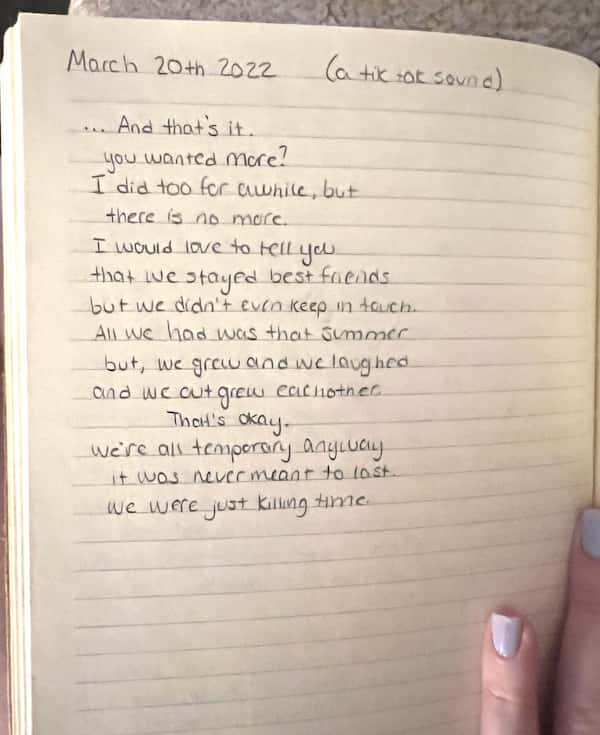
March 20th 2022 (att so)
… And that's it
you wanted more?
I did too for cwhile, but
there is no more.
I would love to rell you
that we stayed best frends
but we didn't even keep in touch
All we had was that summer
but, we grewu and we loughed
and we aut grew eachother
That's okay.
were all temporary anyuay
it was never meant to last.
we were just killing time.
That text is now searchable, editable, and reusable.
When Handwriting OCR Is Useful
Handwriting OCR is useful whenever the information is already written down, but you need it in a digital format.
1. Convert Class Notes to Text
Students often take handwritten notes during lectures because writing is fast and natural. But when it is time to study, search, summarize, or reorganize those notes, photos of notebook pages are not enough.
With OCR, you can turn handwritten class notes into editable text and move them into Google Docs, Notion, Obsidian, Word, or your preferred notes app.
2. Digitize Meeting Notes
If you write action items, decisions, and ideas in a notebook during meetings, OCR can help you move those notes into a project management tool.
Instead of retyping every line, take a clear photo, run handwriting OCR, then clean up the result.
3. Save Journal Pages or Personal Notes
Some people prefer writing journals by hand, but still want searchable digital backups. OCR can help convert journal pages, personal reflections, and daily notes into editable text.
For private notes, a browser-based OCR tool is especially useful because you do not always want to upload personal writing to a remote server.
4. Convert To-Do Lists and Checklists
A handwritten shopping list, packing list, workout plan, or task list can be converted into text and copied into a phone app.
This is faster than typing the whole list again.
5. Extract Text from Whiteboards and Sticky Notes
Whiteboard sessions and sticky notes often contain valuable ideas, but they are easy to lose. Take a photo, run OCR, and save the extracted text before the board gets erased or the notes disappear.
How to Convert Handwritten Notes to Text Online
You do not need complex scanning software. A simple browser-based OCR workflow is enough for many everyday handwritten notes.
Step 1: Take a Clear Photo
Place the paper on a flat surface. Use bright, even lighting. Avoid shadows, blur, and tilted angles.
Dark ink on white paper works best. Black or blue pen is usually easier for OCR than pencil or light-colored ink.
Step 2: Open the OCR Tool
Go to the free Image to Text Converter. The tool can extract text from images, photos, screenshots, and scanned pages.
Step 3: Upload the Handwritten Image
Upload a JPG, JPEG, PNG, or image file that contains your handwritten text. If your browser supports it, you may also paste an image directly from your clipboard.
Step 4: Run OCR
The OCR engine scans the image and tries to recognize the handwritten text. Clear block handwriting usually performs better than messy writing or tight cursive.
Step 5: Copy and Proofread the Result
Copy the extracted text and review it. Handwriting OCR often needs small corrections, especially for names, numbers, abbreviations, and unusual letter shapes.
Handwriting OCR Accuracy: What to Expect
Handwriting OCR can save a lot of time, but it is not perfect. Printed text is easier for OCR because fonts are consistent. Handwritten text is much more variable.
Accuracy depends on several factors:
| Factor | Better Result | Worse Result |
|---|---|---|
| Writing style | Clear block letters | Messy cursive |
| Lighting | Bright and even | Dark or shadowy |
| Image sharpness | Clear and focused | Blurry |
| Background | Plain white paper | Busy or textured background |
| Text size | Medium to large letters | Tiny writing |
| Page angle | Straight overhead photo | Tilted or distorted image |
A good rule is simple: if a human can read the handwriting easily, OCR has a better chance. If the handwriting is difficult even for you to read, the OCR result will probably need more cleanup.
Can OCR Read Cursive Handwriting?
OCR can sometimes read cursive handwriting, but cursive is one of the hardest inputs.
The problem is that cursive letters connect to each other. This makes it harder for OCR to separate individual characters and words. If the cursive is neat, large, and clearly spaced, the result may be usable. If it is fast, slanted, compressed, or messy, accuracy usually drops.
For better cursive OCR results:
- use a sharp, high-resolution photo
- crop close to the writing
- avoid shadows across the page
- keep the paper flat
- write with strong contrast
- expect to proofread the output
If you need the highest accuracy, printed or semi-printed handwriting usually works better than flowing cursive.
Tips for Better Handwriting OCR Results
Small improvements to the source image can make a big difference.
Use Good Lighting
OCR needs clear letter edges. Dark photos, yellow lighting, and shadows can confuse recognition. Use natural daylight or a bright desk lamp.
Keep the Camera Steady
Blur is one of the most common reasons OCR fails. If the letters look soft when you zoom in, retake the photo.
Crop Around the Writing
Remove extra background, desk items, notebook covers, or unrelated text. Cropping helps the OCR engine focus on the handwriting.
Shoot Straight from Above
A page photographed at an angle can stretch or distort letters. Hold your phone directly above the page for better geometry.
Use Dark Ink on Light Paper
Black or blue pen on white paper usually works best. Pencil, light ink, colored paper, or low contrast can reduce accuracy.
Leave Space Between Lines
When lines are too close together, OCR may merge words or read them in the wrong order. Clear spacing helps.
Avoid Overlapping Text
Crossed-out words, arrows, margin notes, and overlapping annotations can confuse OCR. If possible, process cleaner sections separately.
Handwritten Notes to Text vs JPG to Text vs Screenshot to Text
OCR can handle many kinds of images, but the intent is different depending on the source.
| Task | Best For | Recommended Guide |
|---|---|---|
| Handwriting OCR | Notebook pages, journal notes, handwritten lists, whiteboards | This guide |
| JPG to text | Photos, scanned documents, receipts, product labels | JPG to Text Converter |
| Screenshot to text | App screens, error messages, website screenshots, PDF screenshots | Screenshot to Text |
| General image to text | Photos, screenshots, document images, mixed OCR tasks | Image to Text Converter |
If your source image contains printed text instead of handwriting, the OCR result is usually more accurate. For printed photos or document images, use the JPG to Text guide. For app screens and screen captures, use the Screenshot to Text guide.
Common Problems With Handwriting OCR
The Output Has Wrong Words
This usually happens when the handwriting is unclear, the photo is blurry, or letters look similar. For example, OCR may confuse o and a, l and t, or m and rn.
Proofreading is important for handwritten text.
The OCR Misses Some Lines
Lines may be skipped if the image is too dark, the writing is too small, or the page is tilted. Try taking a sharper photo and cropping closer to the text.
Cursive Words Are Merged
Cursive writing can make words look connected. OCR may merge characters or split words incorrectly. Semi-printed handwriting usually gives better results.
Numbers and Symbols Are Incorrect
OCR may misread dates, prices, phone numbers, math symbols, or product codes. Always double-check important numbers manually.
The Text Order Is Messy
If the page has columns, arrows, sticky notes, side comments, or diagrams, OCR may read the content in the wrong order. Try cropping one section at a time.
Best Use Cases for Handwriting OCR
Handwriting OCR works best when the goal is to save time, not produce a perfect legal transcript automatically.
Students
Convert lecture notes, study notes, homework drafts, and whiteboard photos into editable text.
Teachers
Digitize classroom notes, feedback, board writing, lesson ideas, and handwritten planning sheets.
Researchers
Extract text from field notes, interview notes, lab notes, archive photos, or handwritten observations.
Writers and Creators
Move rough drafts, story ideas, outlines, brainstorming notes, and journal fragments into a digital editor.
Office Workers
Turn meeting notes, action items, checklists, and handwritten reminders into text for email, documents, or task apps.
Everyday Users
Convert shopping lists, recipes, reminders, travel notes, sticky notes, and personal writing into copyable text.
When Not to Rely on Handwriting OCR Alone
Handwriting OCR is helpful, but you should not treat it as perfect for every situation.
If the document is legally important, proofread carefully. If the handwriting is messy, OCR may only provide a rough draft. If the page contains tables, formulas, diagrams, or complex layouts, the structure may not be preserved.
For high-stakes documents, OCR should be the first step, not the final version.
Use it to save time, then review the result manually.
Why Use Browser-Based Handwriting OCR?
Many online OCR tools require file uploads. That can be uncomfortable when your handwritten notes contain private information.
Your notes may include:
- personal journal entries
- class notes
- business plans
- client notes
- meeting decisions
- private reminders
- financial details
- medical notes
- research notes
- unpublished ideas
A browser-based Image to Text Converter is useful because the OCR process can run locally inside your browser. That helps keep your workflow more private than sending every image to a remote server.
It also makes the process simple. You do not need to install software, create an account, or upload private notes to a cloud dashboard. Choose the image, run OCR, copy the result, and continue working.
How to Clean Up OCR Text After Recognition
Even good handwriting OCR results usually need small edits. Here is a quick cleanup workflow:
1. Fix Obvious Recognition Errors
Look for incorrect words, missing letters, and confused characters. Pay extra attention to names, numbers, dates, and technical terms.
2. Remove Broken Line Breaks
OCR may preserve line breaks from the image. If you want normal paragraphs, join broken lines together.
3. Rebuild Lists
If the note contains bullets or numbered items, format them clearly after extraction.
4. Add Headings
Handwritten notes often have loose structure. After OCR, add headings to make the text easier to scan.
5. Save the Original Image
Keep the photo as a backup if the notes are important. The extracted text is convenient, but the original image can help verify uncertain parts later.
Final Thoughts
Handwriting OCR is a practical way to turn paper notes into editable text. It is especially useful for class notes, meeting notes, whiteboards, journals, to-do lists, and quick handwritten ideas.
The result may not be perfect, especially with cursive or messy writing, but it can save a lot of time compared to retyping everything from scratch.
Try the free Image to Text Converter, upload a clear photo of your handwritten notes, run OCR, and copy the extracted text into your favorite notes app or document editor.
FAQ
What is handwriting OCR?
Handwriting OCR is a technology that reads handwritten text from an image and converts it into editable digital text.
How do I convert handwritten notes to text online?
Take a clear photo of your notes, open the Image to Text Converter, upload the image, run OCR, then copy and proofread the extracted text.
Can OCR read cursive handwriting?
OCR can sometimes read clear cursive, but cursive is harder than printed handwriting. Connected letters, slanted writing, and messy strokes usually reduce accuracy.
Is handwriting OCR accurate?
It depends on the handwriting and image quality. Clear block letters, good lighting, and sharp photos produce better results. Messy writing, blur, shadows, and tiny text reduce accuracy.
Can I convert handwritten notes to text for free?
Yes. You can use the free Image to Text Converter to extract text from handwritten note images.
What is the best way to scan handwritten notes for OCR?
Use bright lighting, keep the page flat, take the photo from directly above, and crop out unnecessary background. Dark ink on white paper gives the best result.
Can I use handwriting OCR for class notes?
Yes. Handwriting OCR is useful for converting class notes, lecture notes, study notes, and whiteboard photos into editable text.
Can I extract text from a photo of handwriting?
Yes. Upload a clear photo of the handwritten page to the OCR tool. The clearer the photo, the better the result.
Does handwriting OCR work with messy handwriting?
It may work partially, but messy handwriting usually produces more errors. If a human struggles to read the handwriting, OCR will likely struggle too.
Can OCR preserve the original note formatting?
OCR can extract the text, but it may not perfectly preserve layout, spacing, bullets, diagrams, or tables. You may need to clean up the formatting manually.
Is browser-based handwriting OCR private?
UploadLess is designed around browser-based OCR. Your image can be processed locally in your browser, which is useful for personal notes, private writing, work notes, and sensitive documents.
What is the difference between handwriting OCR and image to text?
Image to text is the broader OCR task of extracting text from any image. Handwriting OCR is a specific use case focused on handwritten notes and written pages.